
Open booth sales
The launch checklist, sales modes, booth assignment, registration dates, and launching or pausing sales.
Registration & Orders is where you set up and run booth sales. The tabs are Overview, Orders, Booth merges and Setup. The same four are listed under Registration & Orders in the sidebar, so you can open one directly. Setup holds your sales settings in six sections: General, Checkout, Exhibitor Plus, Forms, Messages and Integrations. Pick one from the menu beside the settings, or from the Section list on a small screen.
Registration & Orders appears only when Booth Sales is included with your show. Booth Setup remains available for maintaining Booth Types and Booths & Services when Booth Sales is not included, but you cannot create or manage orders there. Contact Map D to add Booth Sales.
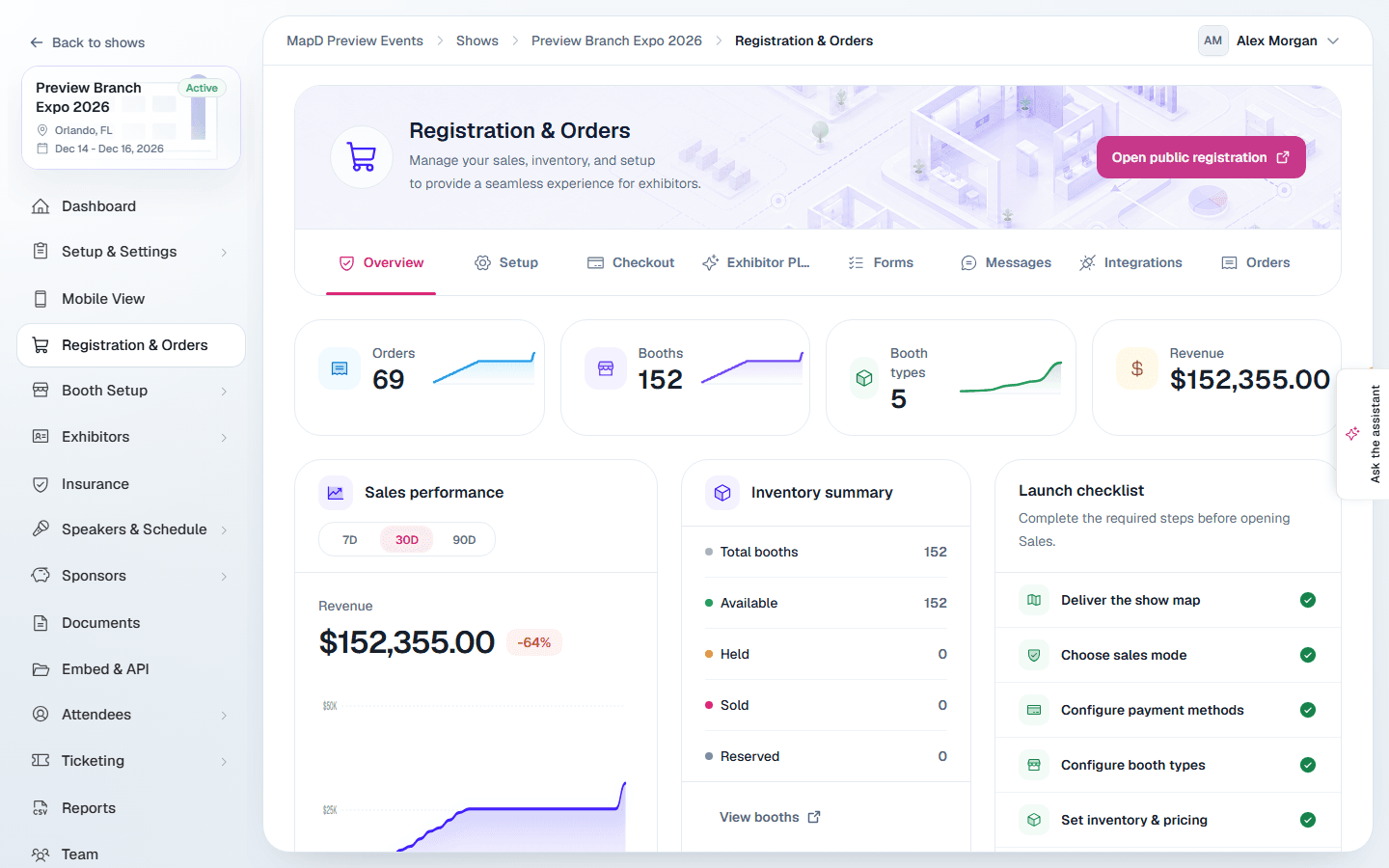
Overview and the launch checklist
If something is stopping buyers from signing in or paying, such as NOVI refusing member sign-ins, an alert above the page title says what is wrong and links to the setting that fixes it. See Alerts when buyers can't sign in or pay.
Overview starts with four totals, all leaving out canceled orders: Orders (and how many are paid, or need review), Booths sold out of all your booths, Revenue paid to date, and Still owed, the balance exhibitors still have to pay and how many orders it is spread across. Below them is Sales performance: what was paid in the range you pick (7 days, 30 days or 90 days, ending on the day of your latest order), how that compares with the range before, and a chart of it building up. Booth counts leave out archived maps, removed booths and booths merged into another. Then come an Inventory summary and your Public registration link with Copy and Open link buttons. The link opens on the first map in your order. If your show has more than one published map, select the arrow beside Copy, or beside Open public registration at the top of the page, to copy a link that opens on a specific map.
The Launch checklist walks you through everything sales needs, and counts how many steps are done, for example 5 of 8 done. Steps still to do are listed first. Once every step is done, the list folds away and the card says so; select Show steps to see it again:
- Deliver the show map
- Choose sales mode
- Configure payment methods
- Configure booth types
- Set inventory & pricing
- Configure checkout settings
- Review registration form
- Review confirmation messages
When you are ready, select Launch Sales. Select Pause Sales to stop taking orders at any time. Sales can only open once your show map has been delivered, unless you sell only services and sponsorships (see Sell services and sponsorships without a floor plan).
Setup
The General section of Setup holds the basics:
| Setting | What it does |
|---|---|
| Sales mode | Disabled closes online sales. Direct purchase lets exhibitors buy straight away. Manager approval turns each order into a request you approve first. |
| Registration starts with | The page your public registration link opens on: the Floor plan, or Services & sponsorships. See below. |
| Exhibitors rank booth choices | Shown under Manager approval. Exhibitors rank the booths they would like instead of reserving booths. See below. |
| Choices per booth needed | How many booths an exhibitor can rank for each booth they need, from 2 to 5. Shown once Exhibitors rank booth choices is on. |
| Booth assignment mode | When a booth becomes the buyer's: After payment, After approval, or Manual assignment by you. |
| Max booths per order | The most booths one order can include. |
| Currency | USD, CAD, EUR or GBP. It cannot be changed after the first transaction. |
| Public instructions | Text shown at the top of the registration page, on the floor plan until the buyer closes it, and on Package options when the link opens there. |
| Registration opens and closes | The date and time online sales open and close, in your computer's time zone. Clear a date to leave that side open. New settings open sales right away. |
Outside those dates buyers can still see the floor plan and services, but cannot start a cart or check out: the page says Registration for this show is closed, or when it opens, in your show's time zone. A cart that is open when registration closes cannot be checked out. Orders already placed can still be paid.
Let exhibitors rank booth choices
With Manager approval, you can let exhibitors send you their top choices instead of reserving booths. Turn on Exhibitors rank booth choices and set Choices per booth needed (3 by default).
On the floor plan, an exhibitor sets Booths needed and selects booths to rank them, best first. With 3 choices per booth, someone who needs one booth ranks up to 3, and someone who needs two ranks up to 6. Nothing is held: every booth stays on sale to everyone else until you assign it. The exhibitor then checks out as usual and selects Submit booth request. Booth prices are added to the order when you assign the booths, so they pay after that.
To review a request, see Assign booths from a booth request.
Sell services and sponsorships without a floor plan
Set Registration starts with to Services & sponsorships and your registration link opens straight on the first checkout step, Package options, with no booth: everything you sell without a booth comes first, grouped by its Category, and items that need one are marked Requires a booth. Buyers select Add on what they want, see it in the Order summary, and select Continue to exhibitor info to carry on through checkout. Back on Exhibitor info returns them to Package options with their choices kept.
If your show also has a floor plan, a Choose a booth button takes buyers to it, keeping what they already added: a buyer can choose sponsorships first, then pick a booth, and check out both in one order. Items that need a booth can be added once a booth is in their order. Without a floor plan, items that need a booth are not listed. If your show has no published floor plan, the registration link always opens on the services list, whatever this setting says.
A show with no map that opens on Services & sponsorships sells only services and sponsorships. Its launch checklist leaves out the floor plan steps (deliver the show map, booth types, and inventory and pricing) and asks you to Add services or sponsorships instead: at least one active item that does not need a booth. Set items up in Booths and services, and turn off Requires booth on each one.
When you change something, a bar appears at the bottom of the page. Select Save changes when you are done, or Discard to undo your changes.
How it looks to exhibitors
Use Open public registration (or Preview public map before launch) at the top of the page to see the registration page the way buyers do. To understand their side step by step, see the exhibitor guides Choose a booth on the floor plan and Check out.
Next steps
Still need help?
Contact your Map D account team. Include your show name and, if something looks wrong, a screenshot of the page.
Last updated November 6, 2026