
Booths and services
Override prices, hold booths back, and create the services, add-ons and sponsorships you sell.
Booth Setup > Booths & Services is where you manage each booth on your floor plan and everything else you sell. Switch between the Booths and Services tabs at the top.
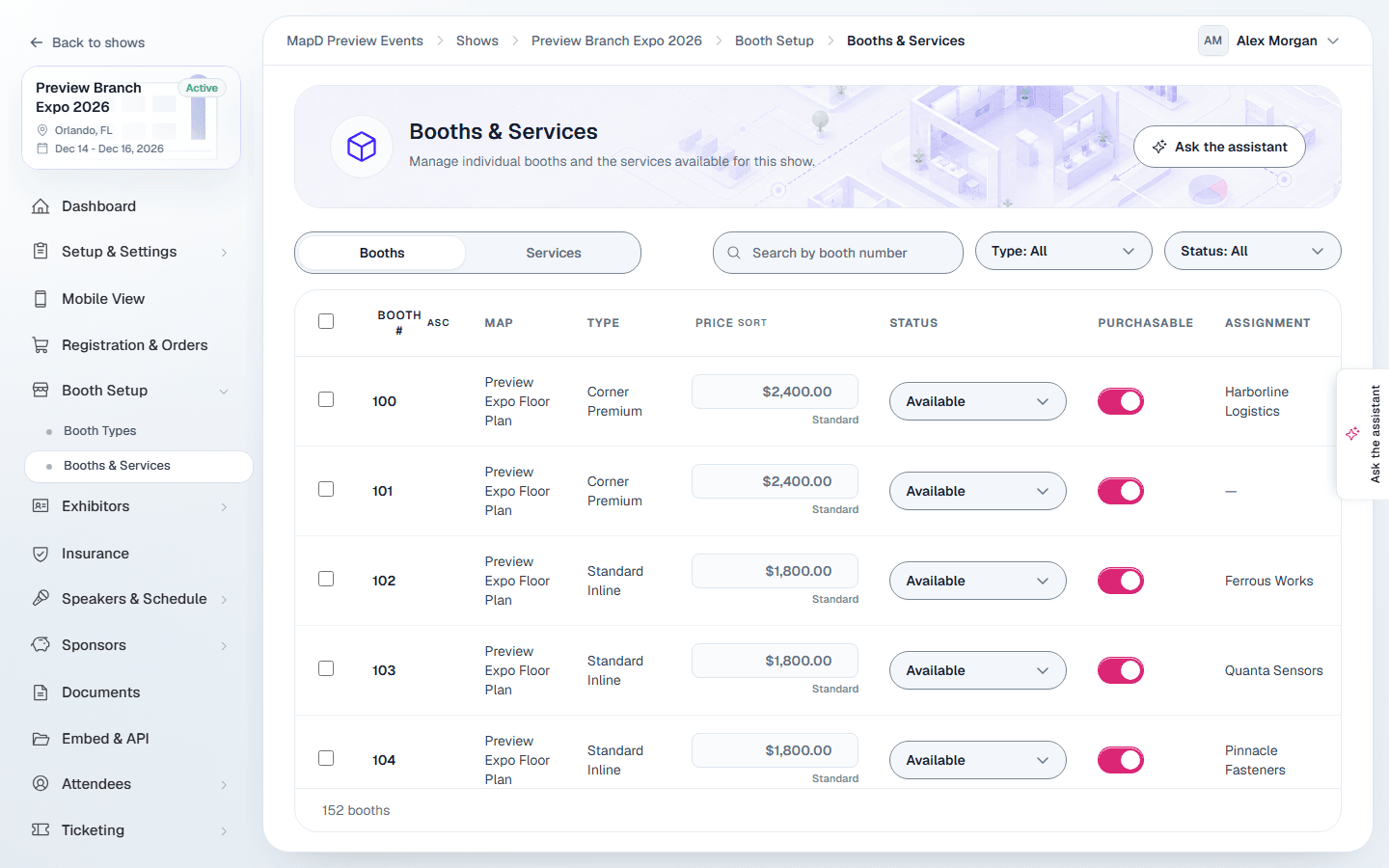
Booths
Every booth in the current inventory on your floor plans is listed with its map, type, price, status, whether it can be bought online, and who it is assigned to. Search by booth number, map or company, or filter by Type and Status. Select a column heading, such as Booth, Price, Status or Assignment, to sort by it, and select it again to reverse the order; on a phone, use Sort above the list. When your show has more than one map, use the Map filter to list only the booths on one map, such as an outdoor lot.
The list shows 25 booths a page; change that with Rows per page and move between pages with Previous and Next below the list. The count there, such as 1 to 25 of 2,585 booths, always counts every booth that matches your search and filters. Search, filters, sorting and the select all checkbox work across all of them, not only the page on screen.
Archived maps, removed booths and booths merged into another are left out of the current inventory and its totals.
Booth statuses
| Status | Meaning |
|---|---|
| Available | Open for sale. |
| Held | In a buyer's cart or an order waiting for payment or approval. A ranked booth choice never holds a booth. |
| Sold | Bought or assigned. |
| Reserved | Held back by you, for example for a sponsor. It cannot be bought online. |
Change a booth
- Price: type a new price in the row to override the booth type's price. The caption changes from Standard to Override. Clear the field to go back to the standard price.
- Hold a booth back: set its status to Reserved. Set it back to Available to release it. Held and sold booths cannot be changed this way.
- Purchasable: turn it off to keep a booth off the online floor plan.
Select a booth to open its details, including the price breakdown, included services and add-ons, and assignment.
Keep a booth for an exhibitor
A Booth code keeps a booth for one exhibitor, for example a returning exhibitor rebooking their spot. The booth stays on the online floor plan as available, but only a buyer who enters the code can select it.
- Set a code: select the booth and type it in Booth code. It saves when you leave the field. You can also set it in the map editor, on the booth's Purchase Settings, where you can put one code on several selected booths at once.
- Send the code to the exhibitor yourself, for example by email. Map D never shows it to buyers.
- Remove a code: clear the field. Anyone can then buy the booth.
Codes aren't case-sensitive, so Acme2026 and acme2026 both work. A booth that is held or sold can't have its code changed. Buyers who enter too many wrong codes have to wait a few minutes before they can try again.
To hide the price of these booths until the exhibitor enters the code, turn on Booth codes on Registration & Orders, in the Checkout section of the Setup tab. See Set up payments.
Change many booths at once
Tick the booths you want and choose an action from the bar that appears: set available or reserved, mark purchasable or not, set or clear a price override, or Create order. Held and sold booths are skipped.
Multiple booth editor
Open Booth Setup > Multiple booth editor to edit booths in a table. You can also open it from the map-name menu in the map editor. Choose the Map first. The list includes booths in that map's draft, including booths you have not published yet.
If loading takes too long or fails, select Try again in the error message. You do not need to refresh the page. If the table was already open, it and your unsaved edits stay available while you retry.
Edit booths individually
Use Individual edit for quick changes to booth numbers, booth types, price overrides and purchasability directly in the table. The other details stay visible as summaries. Open a row's actions menu and choose Edit booth details for alternate titles, status, booth codes, stated dimensions, label size and the other display settings. Select Done to return to the list; your changes remain pending until you select Save all changes and review them. You can edit several booths before saving. Assigned exhibitors are shown for reference; use the map editor to change an individual assignment.
Stated dimensions is your own size wording, such as "20 feet by 20 feet". It changes the displayed text only. Leave it empty to show measured dimensions. Changing this field or the booth type never resizes the booth or changes its measured area. Label size (%) controls the label from 50% to 200%. Red X is a drawing only and does not stop sales. The per-booth Exhibitor logo choice applies when Map settings uses Selected booths.
Search by number, title or exhibitor, and filter by booth type, assignment or purchasability. Select Booth or Booth type at the top of the list to sort by it (by the saved values, so a row you are editing stays put); on a phone, use Sort in the filter bar. Select all matching booths selects every matching booth, including those on other pages. Edits stay with their booths as you change pages.
Bulk edit
Choose Bulk edit. Its editing panel sits beside the booth list on a wide screen and above it on a phone. Under Apply to, choose selected booths, every booth matching your filters, or every booth on the chosen map. Each scope shows its count. Select a Field to change and its new value. To change another field in the same operation, select it above; the values you have prepared stay under Changes to apply. Remove an entry to leave that field unchanged. Clear value removes an existing value; No booth type removes the type.
Select Review bulk changes to see the affected count and fields. The review also counts booths excluded because of locks, orders or assignments. Applying bulk changes also saves any individual row edits you have already made.
Under Additional bulk actions, you can:
- Restore measured dimensions: clear custom dimension text and show the actual measurements.
- Clear booth numbers: clear eligible booth numbers so you can number them again.
- Clear exhibitor assignments: remove eligible manual assignments. Order-linked and held booths are excluded. If none qualify, the message points you to Clear assignments including orders.
- Clear assignments including orders: clear manual assignments and release booths through their orders, including on demo shows. Choose every booth on the chosen map under Apply to to clear the map, then review the warning and select Apply changes. You need permission to manage sales. Orders and payment history are kept; payments are not refunded. Active checkout carts and their booth holds are left unchanged. For released orders, existing payment links stop accepting payment and the booths become available for sale again. An order whose booths or exhibitor assignments extend outside your selection or onto another map is skipped; release it from Registration & Orders instead. Payments still settling can also prevent release. Assignments cannot be restored automatically. Large selections clear in batches; keep the editor open until it finishes. Completed changes stay saved if a later batch fails. Review the listed errors before retrying.
- Remove booths: remove eligible booths after saving a recoverable map snapshot. Restore it from the map editor's Version history if needed.
Sold, held or assigned booths keep their numbers and cannot be removed here. Their sales settings are protected. Locked booths and booths in locked groups cannot take drawing changes; unlock them in the map editor first. Another person's map editing lock or a newer saved revision can also prevent a save. Reload after resolving the conflict.
Map details save as a draft. Publish from the map editor to update the public floor plan. Booth types count as map details: until you publish, buyers see each booth with the booth type it had on the last published map, and a booth with no booth type there sells only at its own price. One with neither a booth type nor its own price can't be bought. When booths have no booth type and no price of their own, a warning above the table counts them and offers Show booths with no type. While the draft has changes buyers can't see yet, a These changes aren't on the public floor plan yet notice appears above the table with an Open map to publish button. Prices, purchasability, booth codes and assignments take effect immediately when saved. If a sales or assignment change fails, the editor lists the affected booths and keeps failed values available to retry; map details already saved remain saved.
Services
Services are everything else you sell: furniture, electrical, sponsorships and so on. Search them, or filter by Category, Type and Status, and select a column heading such as Price or Quantity and limit to sort the list (on a phone, use Sort). Select Add item to create one:
| Field | What it's for |
|---|---|
| Name, Description, Category | How the service appears at checkout and in the exhibitor portal. Services are listed under their Category, exactly as you name it, in the order of the list. |
| Status | Active items are for sale. Draft and Inactive items are hidden. |
| Type | Booth service, Add-on or Sponsorship. A sponsorship is tied to a Sponsor level. |
| Requires booth | The service can only be bought with a booth in the order. Turn it off to sell it on its own. |
| Includes a booth | Each one bought makes a booth in the order free. See below. |
| Price | The price per item. |
| Per-order limit | The most one order can include. |
| Available from, Last day to order | Sell the service only between two dates, such as a printed program ad with a print deadline. Both days are included and follow the show's time zone. Leave either empty for no limit on that side. Outside the dates, buyers see the service at checkout but can't add it, and the exhibitor portal doesn't offer it. |
| Limited inventory | Track a finite quantity. The exhibitor portal shows how many are left, and an order can't take more than remain. |
| Applies to | Limit the service to certain booth types. |
Select Save service. Remove, in the service's row menu, does not delete a service: it sets it to Inactive, and you can reactivate it later.
Lead Retrieval isn't a service here: it has its own settings, so it is sold once per exhibitor and gives the booth team access. See Lead Retrieval.
The dates only limit buyers. You can still add a service to an order yourself after its last day, and services included with a booth always come with it. A buyer who added a service before its last day keeps it in their cart.
Services that include a booth
Turn on Includes a booth for a package that covers the exhibitor's booth, such as a sponsorship. For each one an exhibitor buys, checkout makes one booth in their order free. If the service applies to certain booth types (Applies to), only a booth of one of those types can be free. The exhibitor still picks the booth on the floor plan. When more than one booth qualifies, the lowest-priced one is free, and checkout shows it as included with the service.
Still need help?
Contact your Map D account team. Include your show name and, if something looks wrong, a screenshot of the page.
Last updated November 10, 2026