
Booth types and pricing
Create booth types with a size, price, colors, included services and booths, and who can buy them.
Booth types are your pricing tiers, for example "10x10 Standard", "10x20 Corner" or "Island". Every booth on your floor plan has a type, and the type sets its default price, size, colors and what comes with it. Open Booth Setup > Booth Types in the show sidebar.
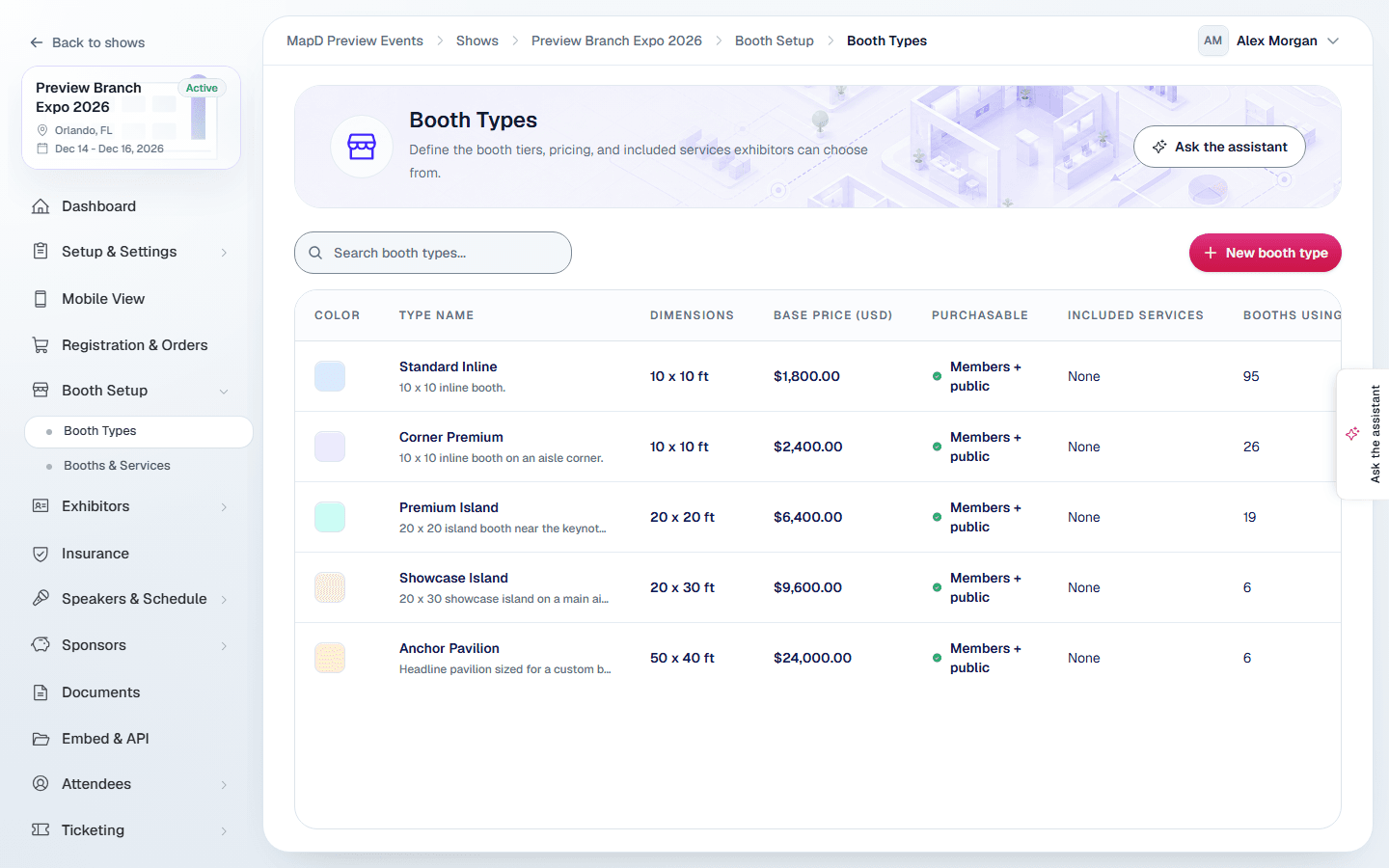
Create or edit a booth type
Select New booth type, or a type in the list, and fill in:
| Field | What it's for |
|---|---|
| Name | What exhibitors see, for example "Corner booth". |
| Public description | A short explanation shown to buyers. |
| Width (ft) and Height (ft) | The booth size. |
| Base price | The default price for every booth of this type. You can override it on individual booths. |
| Booth colors | The Unassigned color shows the booth is open on the floor plan. The Assigned color shows it is taken. |
| Member purchasable | Signed-in member exhibitors can buy it. |
| Non-member purchasable | Anyone on your public registration page can buy it. |
| Exhibitor Plus included | Every booth of this type comes with Exhibitor Plus. |
| Exhibitor Plus personnel | How many staff this booth type includes. Any value above 0 overrides your show-wide default. |
| Included services | Services that come free with the booth. |
| Sellable services | Add-ons buyers of this booth type can purchase. |
Select Save type.
Sell by registration type and date
If your show uses registration types (for example members and non-members, set up on the Integrations tab of your sales settings), a booth type can be limited to some of them and can have its own prices. The same fields are in the map editor's Booth Types panel.
- Registration types that can buy: tick the types that may buy this booth type. With none ticked, every type can. Buyers registering under another type see its booths as unavailable, with Not available for your registration type.
- Prices by registration type and date: select Add price to replace the base price for one registration type, for dates such as an early bird, or both. Give it a name, choose who gets it in Who gets this price (Everyone or one registration type), set From and Until if it only applies for a while, and enter the price.
A price can also change what comes with the booth while it applies:
- Exhibitor Plus at this price: Included or Not included replaces the booth type's Exhibitor Plus included setting. Same as the booth type keeps it.
- Own prices by quantity at this price: tick it to give this price its own Prices by quantity (see below), in place of the booth type's. Ticked with none, no quantity prices apply at this price.
These two are set in Booth Setup > Booth Types; the map editor's panel keeps whatever you set there.
When several prices apply, a dated price beats an undated one, and a price for the buyer's registration type beats one for Everyone. Dates follow the show's time zone, so an early bird ending March 31 ends at midnight where the show is. Buyers see the price's name next to the price on the floor plan. A price set on an individual booth still wins over all of these.
A booth reserved before a dated price ends is repriced at checkout, so the buyer sees the new total before paying.
Charge less for more booths of a type
Under Prices by quantity, select Add quantity price and enter how many Booths and the Price each. When an order has at least that many booths of this type, every booth of the type costs that price, for example $1,500 each for 2 or more and $1,300 each for 4 or more. The same prices are in the map editor's Booth Types panel.
- Quantity prices start at 2 booths. A price without a number of booths isn't used.
- A quantity price only ever lowers a booth's price. A booth that already costs less, for example with its own price override or a member rate, keeps its price.
- Buyers see the lower price, with Price for 2+ … booths, at checkout.
Quantity prices are separate from Booth quantity discounts on the Checkout tab, which take an amount off the booth total for any mix of booth types. Both can apply: the discount is worked out on the quantity prices.
Include booths with a booth type
Under Booths included, select Add included booth to make each booth of this type come with other booths free, for example a sponsor booth that includes two standard booths. Choose the booth type and how many.
- The exhibitor still picks the included booths on the floor plan. Checkout takes their price off and shows them as included.
- If the order has more booths of the included type than are free, the lowest-priced ones are free.
- Choosing this same booth type works like buy one, get one: with 1, every second booth of this type is free.
- A booth that is free itself doesn't include more booths.
Included booths come off after quantity prices and before any discount code or booth quantity discount, so those only apply to what the exhibitor pays for.
Tips
- Give each type distinct colors, so buyers can tell types apart on the floor plan legend.
- Keep prices on the type and use per-booth overrides only for exceptions, such as a premium location. See Booths and services.
- Event Checkup flags booth types without a price. See Get your show ready with Event Checkup.
Still need help?
Contact your Map D account team. Include your show name and, if something looks wrong, a screenshot of the page.
Last updated September 28, 2026