
Attendees and ticketing
Manage attendees and signups, control Homebase sign-in, make a show private, and set ticketing display settings.
Attendees in the show sidebar lists everyone with an attendee profile: people you add or import, people who sign up on your Homebase, and ticket buyers.
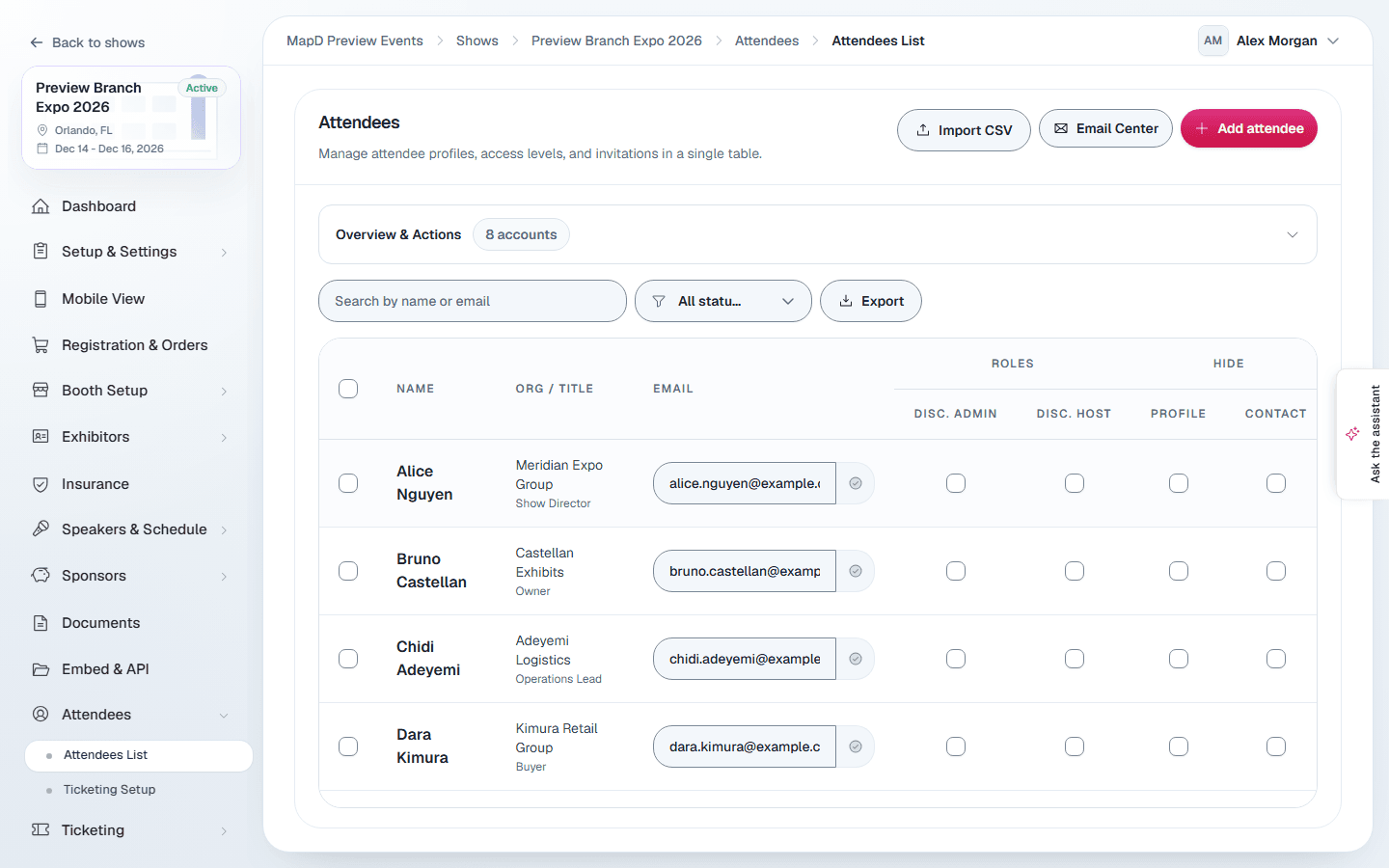
The attendee list
The tiles at the top show the total, and how many are all set, have not logged in yet, or have no account. Filter by status and search by name or email.
- Add attendee: enter their details and select Create attendee.
- Import CSV: upload a file with the columns
first_name,last_name,email,organizationandtitle. - Export: download the list.
- Sync Exhibitor Accounts: create attendee profiles for exhibitors' public contacts, admin contacts or booth personnel.
- Send / Resend Invitations: email attendees a link to sign in to your Homebase.
From the menu on a row you can edit the attendee, reset their password, or delete them.
Signup requests
If attendees can sign up themselves, new requests appear under Pending signup requests. Select Approve or Delete, or Approve all.
Attendee sign-in and signup
Ticketing Setup under Attendees controls how attendees get into your Homebase:
- Event Login: attendees sign in to see your Homebase.
- Free attendee signup: anyone can create an account.
- Password-protected signup: signup needs a password you share.
- Require email confirmation: new accounts confirm their email first.
- Signup greeting and Signup reply-to email.
Changes take effect as soon as you select Save settings.
Attendee networking and chat, reports from attendees, and challenges in your mobile app are set up under Mobile View. See Your show's mobile app.
Make a show private
Under Who can view the show on the same page, choose who can see your Homebase and public floor plan:
- Everyone: anyone with the link.
- Anyone with the password: visitors enter a password you share. Enter it under Show password. Changing the password signs out everyone who entered the old one, and the password is never shown on your pages.
- Attendees, speakers and exhibitors: only people with an account for this show, once signed in. Attendees sign in with the Homebase's event login, so turn on Event Login. Speakers and exhibitors sign in with their own accounts.
Tick Only the schedule to keep everything else open and put only the sessions behind the password or sign-in. Select Save who can view.
You and your team can always view the show when signed in. Booth registration and ticket pages stay open, so buyers can still reserve booths and buy tickets. The mobile app can't open a private show yet.
Ticketing
If your show sells attendee tickets, the Ticketing section of the sidebar shows your ticket types, add-ons, ticket holders, ticket orders, promo codes, registration questions, email templates and reports. Map D sets up your ticket types and pricing. Contact Map D to change them.
Ticket orders and payments
Ticket Orders lists every ticket purchase and booking, newest first, with its buyer, number of tickets, total, what was paid and what is still owed. Search by the buyer's name or email, or by the order number, and filter by status, for example Open balance to see who still owes money. Checkouts nobody finished are not orders and don't appear.
Open an order to see its items, the tickets and who holds them, and its payments:
- A card payment taken by your online ticket checkout appears on its own.
- If your show moved to Map D from your previous platform, its ticket orders came with it, with each payment and refund marked From your previous platform. Merchandise came too: each item is under Add-on Tickets, offered with every ticket type, and an order lists the items bought with it.
- A booking you add by hand, or import, starts with a payment for its full price, marked Marked paid when the order was created.
- Select Record payment for money you received another way, such as a check or cash at the door. Enter the amount, how it was paid, the date, and a check number or note if you like.
- Select Record refund on a payment to write down money you gave back from it. You can't refund more than is left of that payment.
Recording a payment or a refund doesn't charge or refund a card. It writes down what happened, and the order's Paid, Balance and status (Fully Paid, Partially Paid or Not Paid) update to match. You can still record payments and refunds after your show is read-only.
Archived ticketing items
Ticket types, promo codes, registration questions and email templates are never deleted. Archive takes one out of use: a ticket type stops selling, a promo code stops working, a question is no longer asked and a template is no longer sent. Everything already recorded against it stays, including sold tickets, orders, answers and campaign history.
Archived items leave the list. Select Archived on that page to see them, and Restore to bring one back. Ticket types and promo codes come back switched off, so turn them on again when you are ready.
Display Settings
Display Settings is the part of ticketing you control. It shapes your public ticket registration page:
- Time Out Settings: how long tickets are held during checkout.
- Ticket-table columns: which columns buyers see, and what they are called.
- Messages: the sales message, order success message, RSVP messages, and terms and conditions.
- Registration Page Widgets: event description, countdown, map, promo code box, social links, organizer details and the login section.
- Registrations Tickets Tab: group tickets into tabs.
- Booking fee & tax and Email footer & hotel booking.
Select Save to apply everything at once.
For check-in at the door, see Onsite check-in.
Still need help?
Contact your Map D account team. Include your show name and, if something looks wrong, a screenshot of the page.
Last updated September 30, 2026