
Build your Homebase
Pick a template, customize pages and branding, write your show's help center page, and publish.
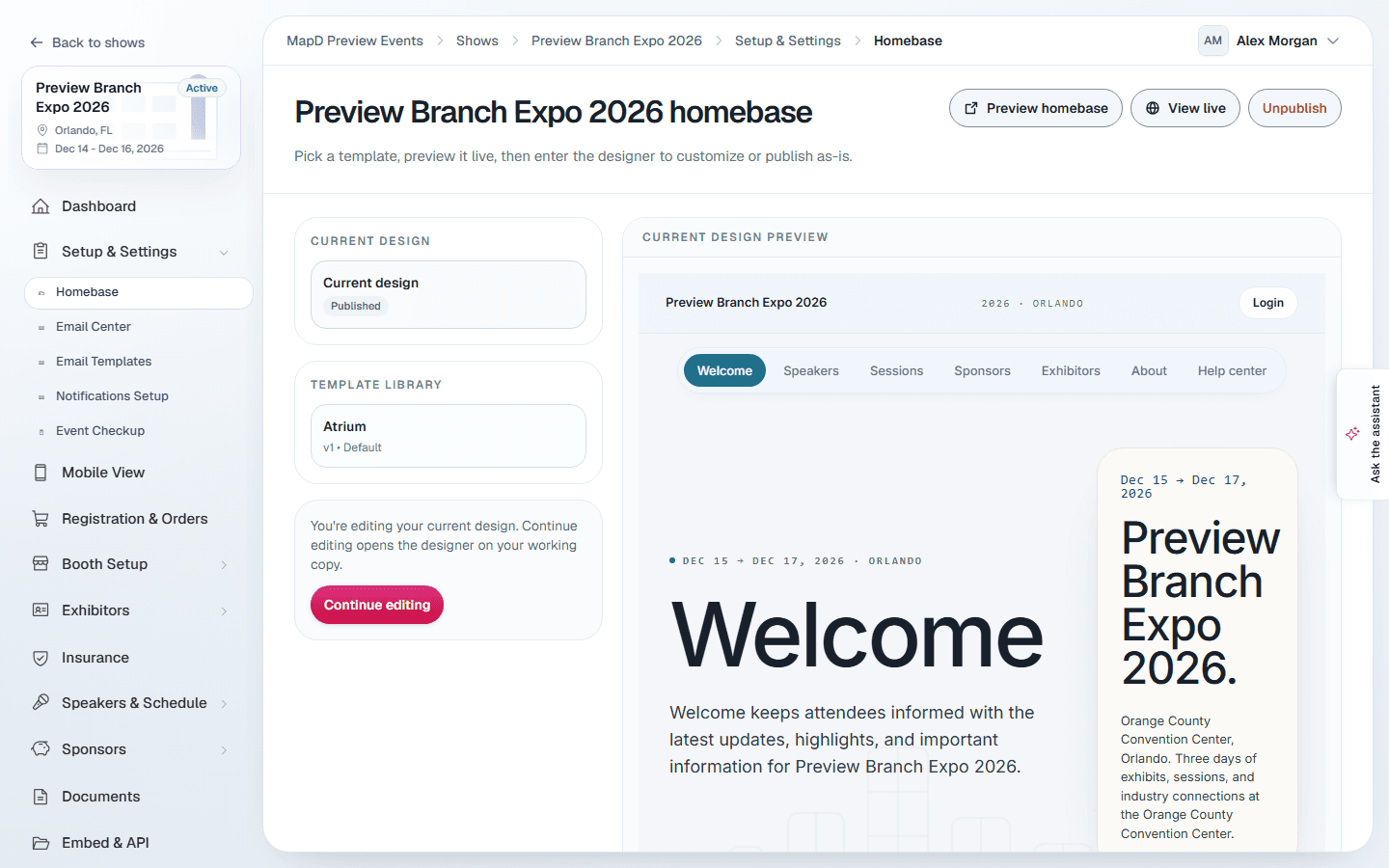
Homebase is your public show website: exhibitors, floor plan, schedule, speakers, sponsors and more, all kept up to date from your workspace. Open Setup & Settings > Homebase in the show sidebar.
Pick a template
The Template Library shows ready-made designs. Select one to preview it, then:
- Publish as-is to go live with the template straight away.
- Customize From This Template to start a new draft in the designer. Your published Homebase stays live until you publish the new one.
If you already have a draft, select Continue editing.
Customize it in the designer
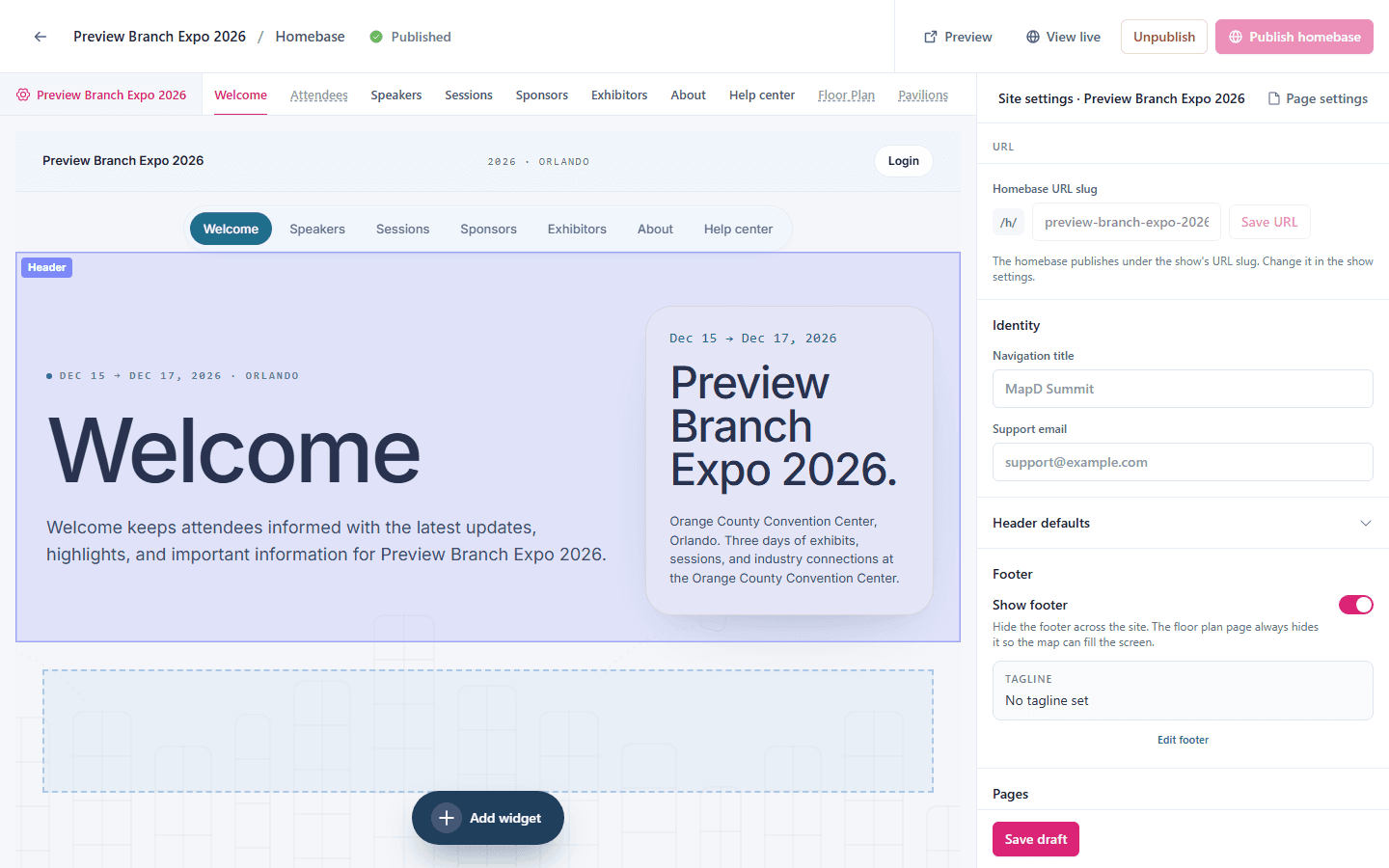
The designer saves your draft as you go. On the left you choose a page to edit; on the right are its settings.
Site settings
- Pages: drag to change the navigation order. The first visible page is the landing page. The standard pages are Welcome, About, Attendees, Exhibitors, Floor Plan, Help center, Pavilions, Products, Schedules, Speakers and Sponsors. Hide any you do not need. Products lists every product and service your exhibitors add to their profiles, with search and a category filter; it is hidden until you show it.
- Identity: the navigation title and a support email.
- Branding: color presets, primary, secondary and background colors, font and background pattern. A Background image puts a photo behind the whole page; choose Fill the page or Tile under Background image fit.
- Footer: tagline, copyright text and links.
The Welcome page
Build your landing page from widgets: headings, text, images, calls to action, image galleries, resource lists, sponsor logos, and spotlights on sessions, speakers or exhibitors.
A Custom content widget pairs media with formatted copy. Its Content body takes headings, bold, italic and underlined text, bulleted and numbered lists, and links. Scripts, embedded styles and pasted images are removed when the page is saved.
An Image gallery turns into a slideshow when you switch on Auto-play the gallery; it pauses while a visitor points at it. Each image can have a Link URL, opened in a new tab if you choose.
To put something up for a limited time, give a Custom content widget or a gallery image a Show from and Show until date. Both are optional and include the day itself, in your show's time zone. The designer always shows everything, so you can prepare content ahead; visitors only see it on those days.
Your show's Help Center page
The Help center page is where you give attendees, exhibitors and speakers show-specific help: who to contact, and documents such as your exhibitor manual. Select the page in the designer and the side panel becomes its editor:
- Staff & Volunteers: add people as contact cards, with a role, photo, email and phone.
- Resources: add links and files up to 5 MB, and choose which audiences see each one.
It goes live with the rest of your draft when you publish.
Preview and publish
- Preview shows your draft exactly as visitors will see it.
- Publish homebase puts the draft live. View live opens the public site.
- Unpublish takes the Homebase offline.
Your Homebase link appears on your show dashboard as Event Home Base. To show it on your own website, see Embed your show on your website.
Homebases moved from your previous platform
If your show moved to Map D from your previous platform, its Homebase came with it, already published: the welcome page's content, slideshows, spotlights, sponsors, lobby links and video in the same order, your tabs with their names and the ones you hid still hidden, your colour, logo and background, your pavilions, your documents and your Help Center contacts and resources. Widgets you kept in preview only didn't come over. Until your move date nobody can see it; after it, it's live at the same web address, and you can change it in the designer.
Still need help?
Contact your Map D account team. Include your show name and, if something looks wrong, a screenshot of the page.
Last updated September 30, 2026