
Speakers and your schedule
Add and import speakers, invite them to manage their profile, and build tracks and sessions.
If your show includes Speakers & Schedules, you manage speakers and sessions under Speakers & Schedule in the show sidebar. Everything here feeds your Homebase and mobile app.
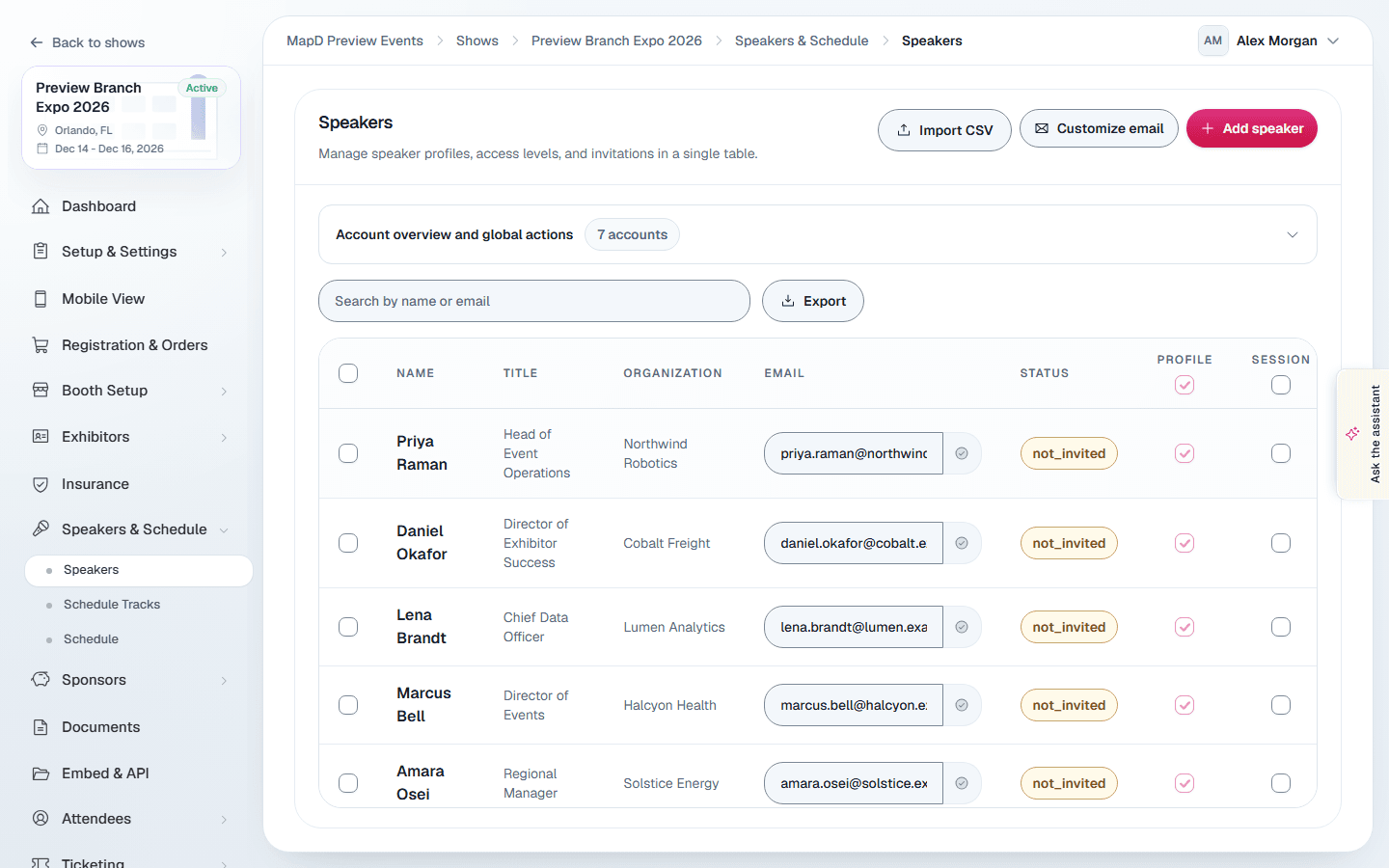
Speakers
Add speakers
- One at a time: select Add speaker and fill in their name, title, organization, email, photo and biography, plus their website and social links. Select Create speaker. Select Speakers at the top of the page to go back to the list.
- From a spreadsheet: select Import CSV and upload a file in the template format, with the columns
first_name,last_name,prefix,suffix,title,organization,email,biography,avatar_urlandsocial_links. Choose Append to existing speakers or Replace all existing speakers.
The speaker list comes in pages. Select the Speaker or Email heading to sort the whole list by it, and select it again to reverse the order; on a phone, use Sort above the list, which can also sort by Organization. Export downloads every speaker your search matches, in the same order. When you add speakers to an activity in the schedule wizard, Related Speakers offers every speaker on your show, however many there are: type part of a name, email or organization to find one, and tick as many as you need. The speakers you picked are listed under the picker, each with a button to remove them.
Turn on Keynote speaker to mark someone as a keynote. Their card and profile on your Homebase then say Keynote instead of Speaker, and the speaker list shows a Keynote tag next to their name.
After saving a speaker, the Related exhibitors tab links them to exhibitor companies, for example a keynote sponsor.
Invite speakers to manage their own profile
An invitation goes to the speaker's own email address, the one on their record and in the Email column of the list. A speaker with no email cannot be invited, so add one on their record first.
The tiles at the top show how many speakers accepted their invitation, how many are invited, and how many are not invited yet. Each speaker's Status reads All set, Invited or Not invited. The buttons above the list show how many speakers each one applies to:
- Send invitations emails every speaker with an address who has not been invited yet.
- Resend invitations sends a fresh link to the ones you have already invited.
On My Profiles, a speaker's Speaker profiles tab lists their profile at each of your shows, and the Sessions tab lists the sessions you named them on, with the show, date, time and location. Each session has View details, or Edit session when you let them edit sessions (below).
Under Edit access, every speaker can edit their Profile. Tick Sessions to let a speaker edit the sessions they are on, or tick Sessions for all in the column header. A speaker can change a session's title, description and links (web conference links, recordings, and websites such as their slides). The date, times, location, tracks, speakers, stream, files, exhibitors and sponsors stay yours to change, and so do feedback and check-in. Their changes show on your schedule and homebase as soon as they save. A show that is view-only takes no edits from speakers. Select Customize email to change the invitation text.
The invitation link opens one page. A speaker who has no account yet chooses a password there, with the invited address filled in and editable, and lands on My Profiles. A speaker who already has an account, even one under a different address, selects I already have an account and signs in on the same page. Either way the invitation is what connects them to your show, so they never have to sign in with the address you sent it to.
If a speaker is already registered at your show under another record, for example as an attendee, the page asks once whether the two records are the same person. Yes, combine them merges the two into the one they are signed in as, keeping their tickets and roles. No, use a different account signs them out and leaves your invitation unused, so a shared device or a family address cannot combine two people by accident.
A link that has already been used, or one older than 30 days, says so and offers the sign-in page instead of failing silently.
Each invitation is a single-use link that expires 30 days after you send it. Resend invite replaces the earlier link rather than adding a second one, so only the newest email a speaker has works. Because the link is a one-time secret, it is never shown back to you after it is sent: if a speaker loses it, resend the invitation.
A speaker who already signs in to your show is sent a short email asking them to sign in, with no new link, because they already have a way in.
Which account a speaker signs in with
Once a speaker is set up, the top of their row menu says which account that is, for example Linked to ada@example.com · via invite · Oct 15, 2026. The address is the one they sign in with, which may differ from the address on their record, and the rest says how the link was made and when.
Unlink account breaks that link. You are asked to confirm first, and the wording says what happens: they can no longer sign in as this person at this show, their sessions, tickets and roles stay exactly as they are, and any invitation still out is cancelled. Their status goes back to Not invited, so send them a new invitation when they should have a way in again.
Unlinking is not the same as removing a speaker. Removing takes them off the speaker list; unlinking leaves every record in place and only ends the sign-in.
Remove a speaker
From the menu on a speaker's row, select Delete speaker. This takes them off the speaker list and ends the sign-in their speaker invitation gave them. It does not erase the person from your show: their record stays, so any ticket, order, appointment or check-in in their name is unchanged, and any other role they hold, such as onsite staff or a reviewer seat, keeps working.
Their speaker history stays with it. The sessions they spoke at and everything else your show recorded against that speaker are kept, so adding them back later brings their place in your records with them rather than starting a second one.
One person, one company and one set of privacy choices
A person's company and their two privacy choices, Hide my profile and Hide my contact details, belong to the person rather than to each role they hold. Someone who is a speaker and an attendee at your show has one company on file, and hiding their profile hides them on the speaker page and in the attendee directory together.
Their row also shows Last seen, which is the last time that person opened anything at your show, whichever role they used.
Schedule
If you collect talks through a Call for Papers, accepted talks can be added here for you, with their speakers. See Call for Papers.
Tracks
Schedule Tracks are categories for your sessions, such as "Keynotes" or "Workshops". Select Add track, enter a Track name, an optional Subtitle and Color, and select Add track in the dialog. To change or delete a track, open the More actions menu on its row and select Edit or Delete; Edit opens the same dialog. Select Save when you are done.
Sessions
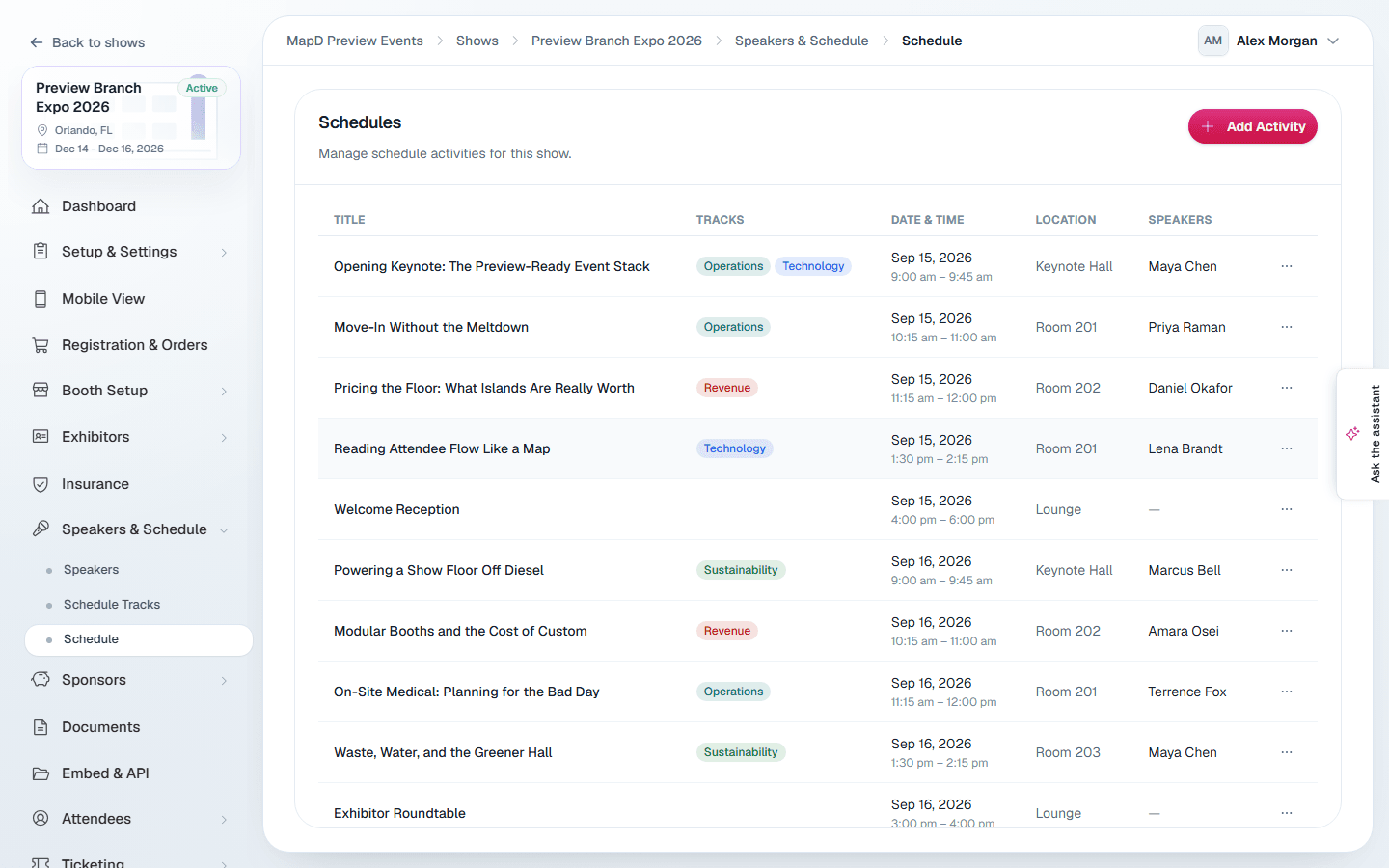
Select Schedule, then Add activity. The wizard has four steps:
- Activity Details: title, description, tracks, date, location, start and end time, speakers (searchable), and a corner logo. Turn on Set as Group Header to make it a section divider instead of a session.
- Stream Embed: paste embed code from your streaming platform, if the session is streamed.
- Videos, Files & Links: web conference links, pre-recorded videos, downloadable files and website links.
- Exhibitors & Sponsors: select Add exhibitor to pick from your exhibitor list, or Add sponsor to pick from your sponsor list, so a sponsor that isn't exhibiting can still be named on a session. Each one takes an optional Relation Detail, such as "Presenting sponsor". Add sponsor is unavailable until your show has sponsors on its Sponsors page.
The buttons at the bottom of the page move you through the steps. Next (for example Next: Stream Embed) saves the activity and opens the next step, and Back returns to the previous one. Select Save & Exit to save and return to Schedules, or Cancel to leave without saving the step you are on. On the last step, select Create activity (or Save activity when you are editing). When you edit an activity, you can also jump to any step by selecting it at the top. Select Schedules at the top of the page to go back to the list.
The Schedules list shows activities by day and start time, the same order as your homebase, so an activity you move to a new time moves in the list too. A group header comes before the sessions that start at its time, and activities with no date or time come last. Select the Date and time heading to show the latest day first, and select it again to go back. The list keeps that day and time order because a group header has to stay above its sessions, so the other headings don't sort it. On a phone, each activity shows as a card with its tracks, date and time, and speakers.
On your homebase schedule, each session shows its tracks by name, and opening it lists the stream, links, videos and files from steps 2 and 3 under Resources, and the sponsors and exhibitors from step 4 under Sponsors and partners, with each sponsor's logo and a link to its website. A link opens in a new tab and a file downloads. Visitors can select Print schedule to print the sessions they are looking at, a day at a time, with each one's time, location, tracks and speakers.
Import sessions from a spreadsheet
To add a whole schedule at once, select Import schedule on the Schedules page (on a phone, it is in the More schedule actions menu). Select Download template for a file with the right columns, fill it in, save it as a CSV, and select Choose CSV file.
The file has one row per session. Only title is required:
| Column | What to put in it |
|---|---|
title | The session title. |
date | 2026-11-04, 11/04/2026 or November 4, 2026. |
start_time | 9:45am or 18:00. end_time takes the same formats and must be after the start. |
location | The room or stage. |
tracks | Track names, separated by commas. A track your show doesn't have yet is added for you. |
speakers | Speaker names, separated by commas. A speaker your show doesn't have yet is added. |
description | Plain text. A blank line starts a new paragraph. |
allow_feedback | 1 to turn on session feedback in the mobile app, 0 to leave it off. |
Files exported from your previous platform's schedule importer, with columns such as Start_Time and Related_Speakers, work as they are.
Before anything is saved, the dialog checks the file against your show and lists every session with New or Update, the tracks and speakers it will add, and any rows it can't import and why. Select the import button, for example Import 12 sessions, to finish.
- Re-importing is safe. A row with the same title and date as a session you already have updates that session instead of adding a second one, even if you changed its start time. When a title appears more than once on the same day, such as two breaks, the start time has to match too. Only the columns in your file change; a column your file leaves out keeps its current value. The import never deletes sessions.
- Speakers are matched by first and last name, so "Dr. Alex Morgan" and "Alex Morgan" are the same person. A new speaker needs both a first and a last name. Adding speakers this way needs permission to manage speakers; without it, names that don't match an existing speaker are left off and listed as notes.
- One file can hold up to 2,000 sessions.
Check-in, feedback, live polls and Q&A for your sessions in the mobile app are set up under Mobile View. See Your show's mobile app.
Event Checkup reminds you about speakers without a bio or photo and sessions with no speaker. See Get your show ready with Event Checkup.
Speakers and sessions from your previous platform
If your show moved to Map D from your previous platform, its speakers, tracks, sessions and sponsors came with it, in the order you had them there.
- Speakers keep their photo, biography, website and social links, and related exhibitors. A speaker who had an account there shows the same Status, and Sessions is ticked if they could edit their sessions.
- Sessions keep their date, times, location, tracks, speakers, related exhibitors, corner logo, and their links, videos and files.
- A session whose end time was earlier than its start time has no end time. Set one in Activity Details after your move.
- A stream embed that wasn't an HTTPS iframe was left out. Paste it again in Stream Embed.
- Speakers marked Keynote there have Keynote speaker turned on here.
Still need help?
Contact your Map D account team. Include your show name and, if something looks wrong, a screenshot of the page.
Last updated November 10, 2026