
Your show dashboard
Event links, the sales summary, the configuration settings you control, analytics and the history of changes.
Every show has a dashboard. Open it from Shows in the organization sidebar: the list shows active shows first. Change the status filter to see archived ones, or filter by date and search by name.
The show list, sidebar and dashboard also say where to work: Manage here, Managed on previous platform, or Read-only. An organization can have new shows managed here while its imported shows still sync. See Create new shows while older shows sync.
For a syncing show, Data current through on the list and banner shows how current the source copy is, in UTC. Data freshness not available yet means there is no verified source date. This is separate from when a sync ran.
The dashboard has four tabs: Overview, Configuration, Analytics and Activity.
Create a show
When creating a show, Postal code (optional) under Venue and location can be left blank. If you enter a postal code, use the venue's local format, including any letters, spaces or hyphens. The same applies when editing the show's venue details.
Clone a show
From a show's row menu in Shows, select Clone, enter the new dates and choose what to copy. When you include Schedule & Tracks, session dates move by the change in the show's start date. If either show has no start date, the change in end dates is used instead. Sessions keep their start and end times, and undated sessions stay undated. Review the copied schedule if the new show is shorter, because sessions can fall outside its dates.
When you include Registration Settings, the clone gets the registration form and the after-meeting survey, with the same questions, required answers, order and scales. Answers are never copied, so the new show's survey starts empty.
You can also clone a show that is still syncing from your previous platform, for example to set up next year's event here. The clone is a new show managed here only: later changes to the original on your previous platform are not copied to it.
Overview
Event links
Quick links to the parts of your show visitors use:
- Event Home Base opens your public show site, once it is published. See Build your Homebase.
- Registration Map View opens the floor plan where exhibitors buy booths. Registration is not open means you have not launched sales, or sales are paused. Select it to open Registration & Orders, Overview, complete the launch checklist, then select Launch Sales when you are ready. If booths are missing or online sales are disabled, the message explains what to change and links to it. No online registration means booth sales are not part of your show.
- Map Editor opens your floor plan in the editor, on the first map in your order. While Map D is still building your map, you see Map currently in production instead.
Link to a specific map
If your show has more than one published map, Event Home Base and Registration Map View each have an arrow on their right edge. The button itself opens the page on your first map. Select the arrow, then a map, to copy a link that opens that page on the map you picked instead.
The Homebase link opens your Homebase floor plan page, so that page has to be turned on. If it is off, the menu says so. See Build your Homebase.
If Ticketing is included with your show, ticket sales have their own dashboard under Ticketing → Dashboard in the show sidebar. See Ticketing dashboard.
Sales summary
If Booth Sales is included with your show, the Sales summary shows Booth sales (booths sold out of the total, for example 40 of 120, with your fill rate), Revenue by payment method (after refunds), the Outstanding balance and how many orders have one, and a 12-week Sales over time chart. Export CSV downloads each order with its buyer, status, total, amount paid and balance. Under Booth sales, booths on an order that is waiting for its card payment or your approval are counted as on orders awaiting payment or approval: they become sold once the order is paid or approved. Booths a buyer has in their cart but hasn't ordered yet show as in carts. Booth totals count the current inventory on your floor plans, leaving out archived maps, removed booths and booths merged into another. A booth you deleted in the map editor still counts until you publish, because buyers can still buy it on the public floor plan until then. Revenue, Outstanding and Export CSV count the same orders as View All Orders: carts buyers haven't checked out and orders you archived are left out. The figures refresh each time you open the dashboard. Shows without Booth Sales do not display the sales summary.
Show details
About this show has the show's name, description, event website and public contact info. Beside it, the Details card shows the venue and its address, the web address (URL slug), the dates and the time zone, and the System card shows the Show ID, currency, status, and when the show was created and last modified. Organizers with show management access can open Show settings from About this show or Setup & Settings in the sidebar.
Show settings
Public show details explains what each field is for. Description introduces the event to visitors and provides default Homebase copy. Event website links to the event's public website. Public contact info tells visitors how to reach the organizer. Select Save changes to save these fields, or Discard to undo unsaved edits. Currency controls prices and orders; it is locked after sales activity.
Show image (optional) identifies the show in the show list, navigation, dashboard and mobile show header. It is separate from Homebase page images and is not required by Event Checkup. Upload a JPEG, PNG, WebP or GIF up to 5 MB, replace it, or remove it. Image changes save immediately. Show details and images cannot be changed while the show is read-only, syncing or archived.
Map D manages the show's name, dates, venue, time zone, URL slug and plan. Contact Map D if these need to change.
Configuration
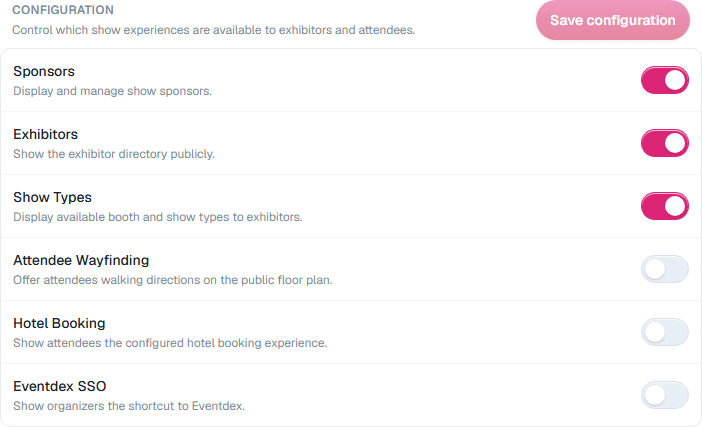
Configuration holds the show settings you can change yourself. Eventdex SSO is shown for reference and is managed by Map D. The Tiers card shows which parts of Map D your show includes. Contact Map D to add one.
| Setting | What it does |
|---|---|
| Sponsors | Display and manage show sponsors. |
| Exhibitors | Show the exhibitor directory publicly. |
| Show Types | Display available booth and show types to exhibitors. |
| Attendee Wayfinding | Offer attendees walking directions on the public floor plan, to booths and to any other place in Find a place. |
| Hotel Booking | Show attendees the hotel booking experience set up for your show. |
| Eventdex SSO | Show organizers a Switch to Eventdex shortcut in the account menu. |
Changes take effect when you select Save configuration.
Analytics
See how people use your Homebase and floor plan, with sections for show stats, exhibitors, exhibitor engagement, sponsors, sessions, speakers and attendees. See Show analytics and reports.
Activity
A log of changes to the show: what changed, the old and new values, who changed it and when.
Still need help?
Contact your Map D account team. Include your show name and, if something looks wrong, a screenshot of the page.
Last updated November 16, 2026