
Open the map editor
Open your floor plan, start from an image or a blank map, set the scale, and work alongside colleagues.
The map editor is where your floor plan is drawn and kept up to date. On the standard plan, Map D usually builds your first map for you; you then use the editor to make changes. On the free plan, you draw it yourself.
Open the editor
Open your show's dashboard and select Map Editor under Event links. If you see Map currently in production instead, Map D is still building your map, and the link appears once it is delivered.
On the free plan, signing in takes you straight to your map.
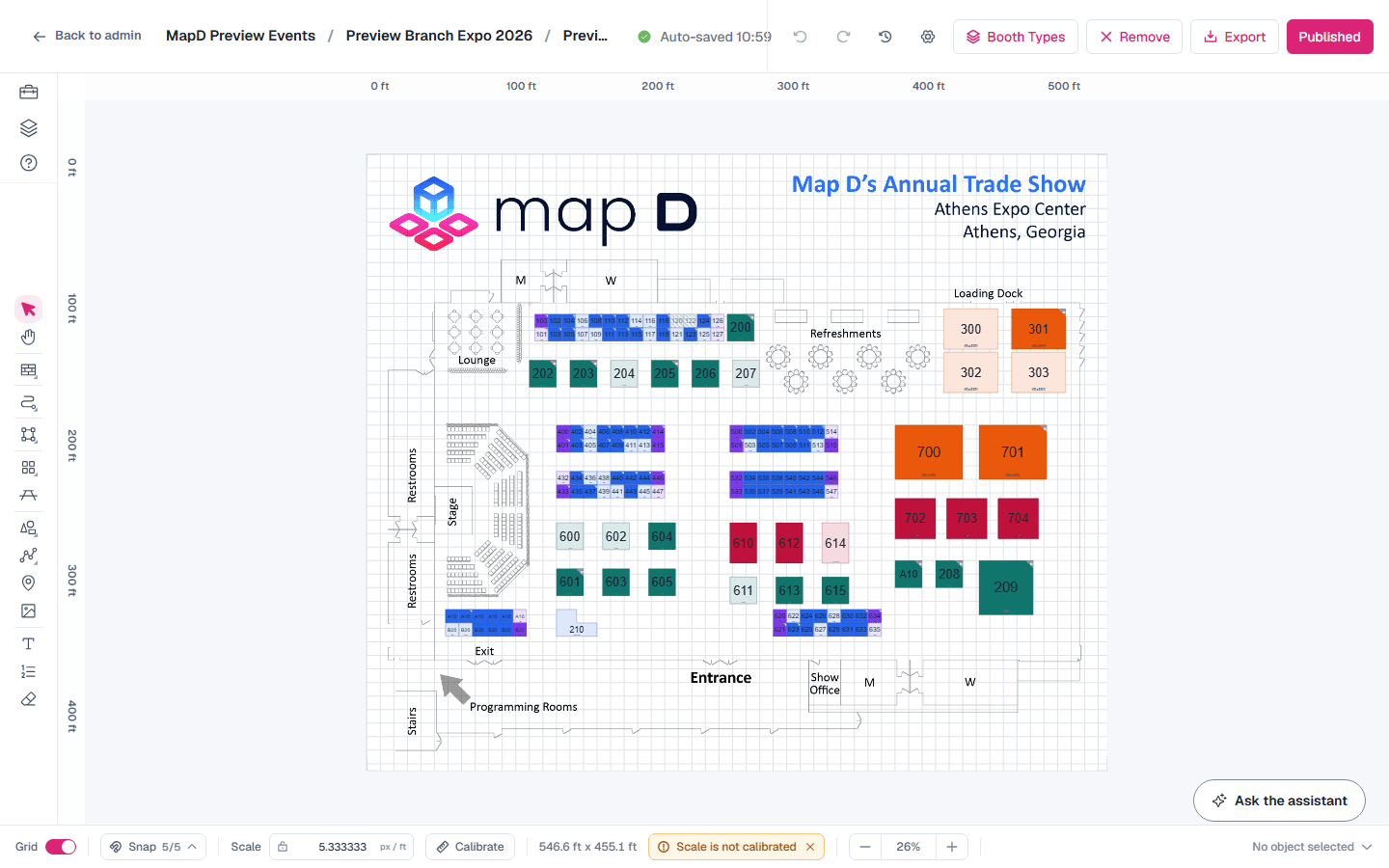
Start a new map
An empty map offers two ways to begin:
- Import image: upload a floor plan image from your venue, then trace over it. PNG or JPG works best, ideally 4000 x 3000 pixels or larger, up to 50 MB.
- Set map size instead: enter the width and height of the floor and draw from scratch.
Set the scale
For booth sizes and distances to be right, Map D needs to know how big the image is in real life. After you import an image, Map D asks Calibrate the map scale?
Pick a known distance
Select Calibrate in the footer, then click two points on the image whose real distance you know, such as the ends of a wall.
Type the real distance
Enter the distance between the two points. Everything on the map is rescaled to match.
Lock the scale
Use Lock map scale in the footer so it is not changed by accident.
The scale is also what the arrow keys use. A nudge moves a booth 1 ft, or 5 ft with Shift, measured at the map scale, so calibrate first if the distances look wrong. With 10 ft aisles, two Shift presses clear one aisle.
Shows with more than one map
If your show has more than one map, for example one per hall or floor, the name of the map you are editing sits in the header next to your show's name. Select it to open the map menu:
- Switch maps: pick another map to open it in the editor.
- Reorder & share maps: set the order of your maps, and copy a link to any one of them.
- Rename: change the map's name everywhere it appears, including the floor plan tabs visitors see.
To add or retire a map, contact Map D.
Choose which map opens first
The first map in your order is the one your registration page, Homebase floor plan and mobile app open on. Visitors can still switch to the others.
Open the map order
Select the map name in the header, then Reorder & share maps.
Move a map
Drag a map by its handle, or use the up and down arrows. The top map is marked Opens first.
Save
Select Save order. The new order applies to every public page straight away, with no need to publish.
Link to one specific map
In the same list, select the link icon beside a map to copy a link that opens on that map instead of the first one. You can copy its registration page, its Homebase floor plan, or the floor plan on its own. A map appears on public pages only once it is published, so a map still marked Draft has no link yet.
You can also copy these links from your show dashboard. See Your show dashboard.
Map Settings
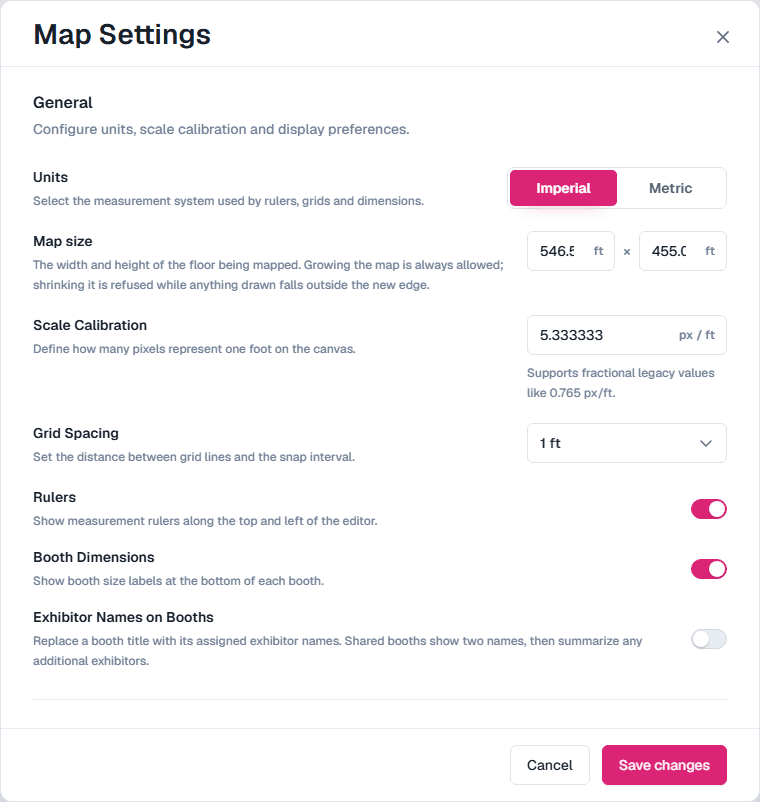
Select the settings icon in the header for Map Settings: units (imperial or metric), map size, scale, grid spacing, rulers, whether booths show their dimensions and exhibitor names, the canvas background, and the map image. You can also upload a Booth Layout Reference: an image you trace over that is never shown on the published map.
Under Canvas Background, select Upload (or Replace) to put an image, such as an aerial photo of the site, behind the area outside the map boundary. Any image up to 50 MB works. The editor confirms with Canvas background image uploaded. once it is saved; if the upload is refused, you see why and the background stays as it was. Remove takes the image away and goes back to the background color.
Saving and editing together
- The editor saves automatically as you work. The header shows when it last saved. There is no Save button.
- One person edits at a time. If a colleague has the map open, you see who, and you can still pan, zoom, inspect and export while you wait. Editing is released after 15 minutes of inactivity, and you can then select Take over editing.
- Undo and redo are in the header, or use Ctrl+Z and Ctrl+Shift+Z (Cmd on a Mac).
Still need help?
Contact your Map D account team. Include your show name and, if something looks wrong, a screenshot of the page.
Last updated September 30, 2026