
Publish your floor plan
Publish changes, understand the pre-publish checks, restore an earlier version, and export an image.
Publishing makes your floor plan live. Until you publish, changes stay in your draft and visitors see the previous version.
What publishing updates
The published map is the one used by:
- Your public registration page, where exhibitors pick booths
- Your Homebase floor plan
- Checkout and order pages
- The floor plan embed on your own website
If your show has more than one map, these pages open on the first map in your order. Only published maps appear on them. To change the order, see Shows with more than one map.
Publish
Select Publish
Select Publish in the top right of the editor.Review the checks
If Map D finds anything worth a look, the Before you publish panel opens. Select a finding to zoom to it on the map.
Fix or publish anyway
Fix what you need to, then select Publish again, or select Publish anyway.
To publish later changes, select Publish again. Each publish that changes something saves a new version.
What the checks look for
Warnings:
- Booths that share the same number
- Booths stacked on the same floor space
- Doors too wide for their wall
- Walking paths that cross a wall without a door, or enter a restricted area
- Booths that cannot reach the walking paths without crossing a wall
- Areas with no space or with outlines that cross themselves, and walls with zero-length edges
Info:
- Doors whose wall was removed
- Walking paths that are not all connected
None of these stop you from publishing.
Version history
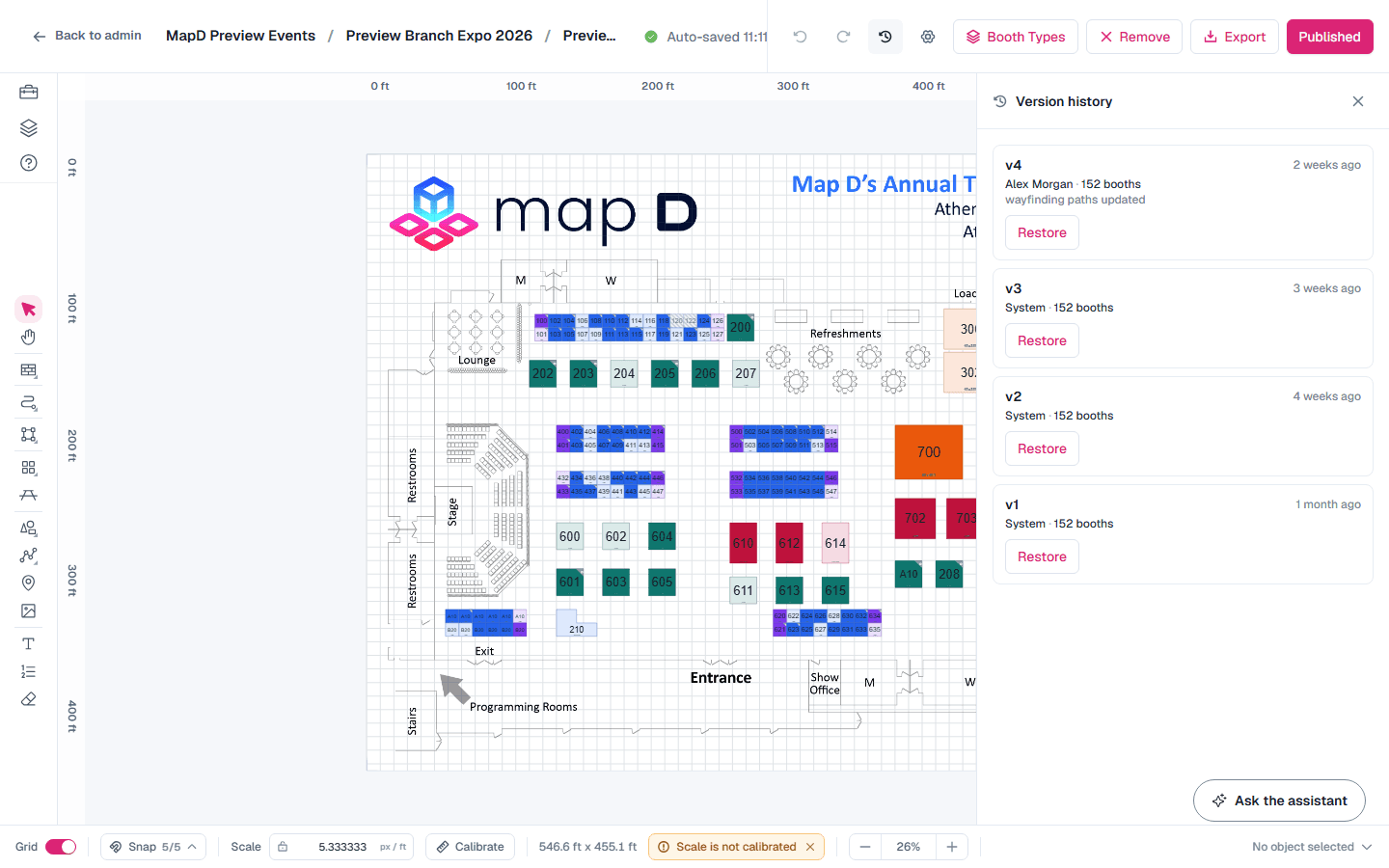
Select Version history in the header to see every published version, with who published it and a summary such as "3 booths added" or "floor plan updated".
To go back, select Restore on a version. Map D shows how many booths change, and warns you about sold, held or assigned booths that would move or disappear. Restoring replaces your draft only. It does not change the live map until you publish. The restore itself is saved, so you can undo it.
Export an image
Select Export in the header to download the map as a high-resolution PNG, for printed guides or signage. The booth layout reference is left out.
A very large map, such as a whole convention center floor, is exported at the largest size a browser can hold, up to 8,192 pixels on a side. The confirmation tells you the size it was saved at. Booth numbers stay readable at that size.
Visitors can print the published map themselves: Print map, under the zoom buttons on the online floor plan, prints the whole plan on one page with your show and map names above it.
Still need help?
Contact your Map D account team. Include your show name and, if something looks wrong, a screenshot of the page.
Last updated September 29, 2026