
Lay out and number booths
Fill a region with booths using the layout generator, then number them in the order you click.
Placing booths one by one is slow on a big floor. The booth layout generator fills a region with booths in seconds, and the numbering tool numbers them in the order you click.
Generate a booth layout
Choose the region
Select Layout (U) in the tool rail and drag a box over the empty floor. Or right-click an area and choose Generate booth layout.
Configure the layout
Choose an Arrangement: Single row, Back to back, Island or Perimeter. Pick the Booth type, the booth Width and Depth, and the Aisle width.
Choose how many
Under Fill mode, place Up to a count or Fill the region. Adjust Row axis to angle the rows.
Accept
The preview updates as you change settings. Nothing is saved until you select Accept.
You can number booths as part of the layout using the same numbering fields described below. Turn on Show cells that did not fit to see where space ran out.
Number booths
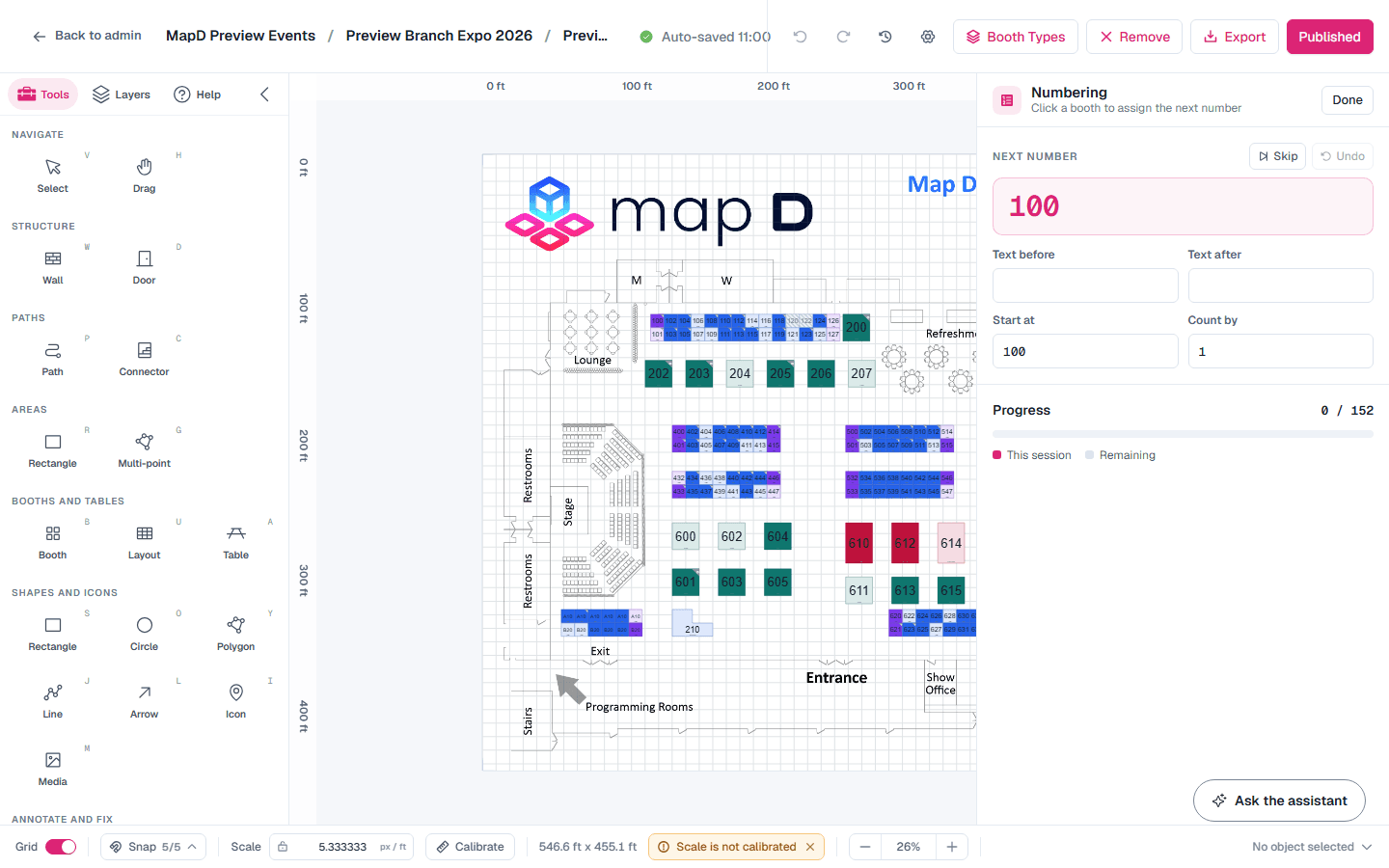
Open numbering
Select Booth numbering (N) in the tool rail.Set the pattern
Set Start at (for example 100), Count by (for example 1 or 2), and optional Text before and Text after, such as "A-". Leading zeros set the width: starting at 001 gives 001, 002, 003.
Click booths in order
Click each booth in the order you want. The rail shows the Next number. Use Skip to jump a number, or Undo to take the last one back.
Finish
Select Done.
The rail warns you when a number is already used by another booth, or when you renumber a booth that is assigned to an exhibitor or has a live order.
Clear booth numbers
When numbering goes wrong, for example on a copied map, it is often quicker to clear the numbers and start again.
Select the booths
Select the booths to clear, or press Ctrl+A to select everything on the map.
Clear the numbers
In the panel on the right, select Clear booth numbers. The numbers disappear from the map right away.
Number again
Use Booth numbering (N) to give the booths new numbers.
Booths that are sold, held for an order or assigned to an exhibitor keep their numbers, because their order and exhibitor are linked by that number. Changed your mind? Press Ctrl+Z to put every number back.
Still need help?
Contact your Map D account team. Include your show name and, if something looks wrong, a screenshot of the page.
Last updated September 25, 2026