
Invite exhibitors to their portal
Assign login emails, customize the invite, and send or resend portal invitations from the Access Manager.
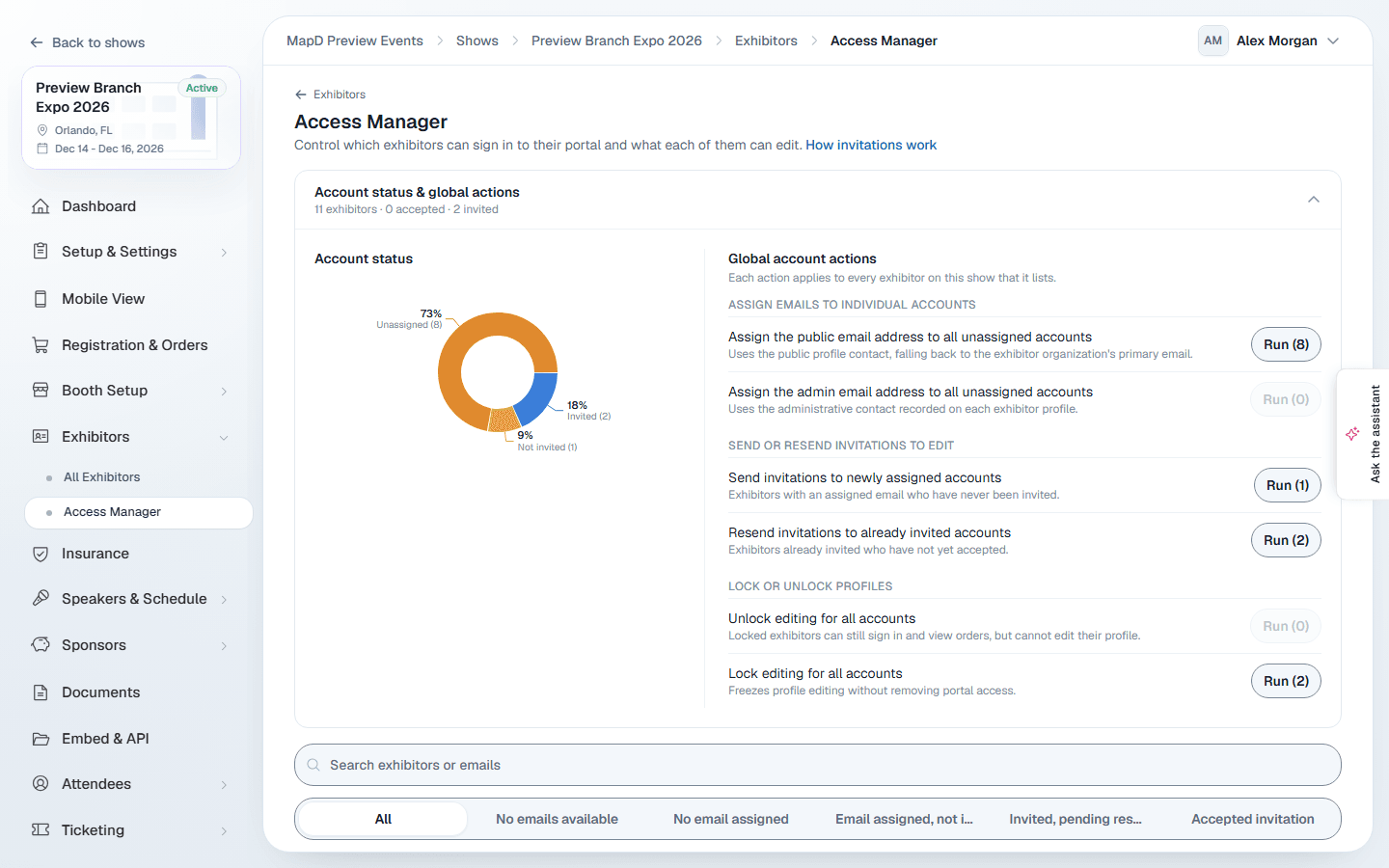
The exhibitor portal is where exhibitors complete their own profile, add staff and products, and finish your onboarding tasks. Invite them from the Access Manager: select Access Manager at the top of Exhibitors.
1. Give each exhibitor a login email
Every exhibitor needs one email address that signs in to their portal. The Account status chart shows how many have one.
- For one exhibitor, select Assign an email in their row and choose their Admin contact, Public contact or organization's primary email.
- For everyone at once, use Global account actions: Assign the admin email address to all unassigned accounts, or the public email.
2. Customize the invite
Under Custom messaging options, write a Custom greeting and Custom message, choose whether to Include booth assignment, and add Related documents and links such as your exhibitor manual. Select Save message.
3. Send the invites
- Select Invite on a row to invite one exhibitor, or copy their invite link to send yourself.
- Use Send invitations to newly assigned accounts to invite everyone who has an email but no invite yet.
- Use Resend invitations to already invited accounts to nudge anyone who has not accepted.
Map D asks you to confirm before running a global action. Invite links stay valid for 30 days.
Follow up
The Account status chart tracks each stage: no email available, no email assigned, assigned but not invited, invited and pending, and accepted. Exhibitors who have trouble can use the exhibitor guides, starting with Your exhibitor portal invite.
To control what exhibitors can edit once they are in, see Control what exhibitors can edit.
Still need help?
Contact your Map D account team. Include your show name and, if something looks wrong, a screenshot of the page.
Last updated September 25, 2026