
Control what exhibitors can edit
Turn portal features on or off, lock editing, and configure Exhibitor Plus selling and personnel limits.
You decide which parts of the portal exhibitors use and when they can make changes. Most of this is in the Access Manager (open Exhibitors, then Access Manager). The rest is on the Exhibitor Plus tab of Registration & Orders.
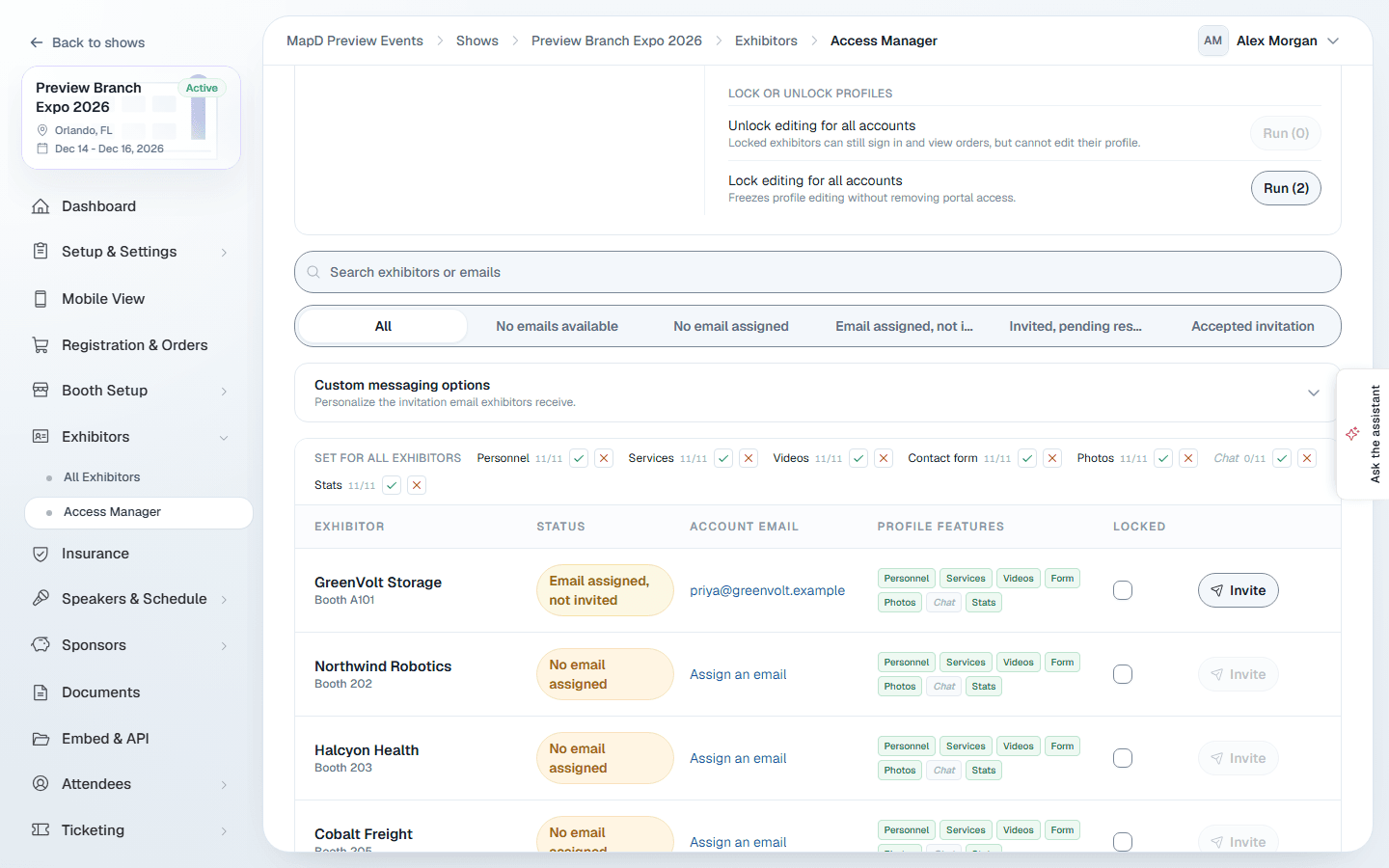
Profile features
Under Set for all exhibitors, turn each feature on or off for the whole show:
| Feature | What exhibitors get |
|---|---|
| Personnel | Add their booth staff. |
| Services | The booth services purchase button in their portal. |
| Videos | A videos tab on their profile. |
| Contact form | A form visitors use to message them from the Homebase. |
| Photos | A photo gallery on their profile. |
| Stats | Their profile analytics. |
Each exhibitor's row also has its own feature chips. Change them to make an exception for one exhibitor, for example to give a sponsor videos when nobody else has them.
Lock editing
Lock the portal when profiles must stop changing, for example once your printed guide goes to press.
- For everyone: Lock editing for all accounts or Unlock editing for all accounts in Global account actions.
- For one exhibitor: the Locked switch on their row, or Manage portal access on their profile.
A locked exhibitor's profile disappears from their portal until you unlock it. You can still edit it yourself with View as exhibitor.
Exhibitor Plus settings
On Registration & Orders > Exhibitor Plus:
- Selling: choose No online sales, Purchase or include (sold as an add-on at checkout, or included with certain booth types), or Every booth. Set the price and description.
- Included features: booth personnel, products & services, photos, videos and the business contact form.
- Booth personnel: how many staff are included per booth, the overall Personnel limit, the price of extra spots, and whether exhibitors can buy them in the portal. You can set different included counts per booth type.
- Portal & orders: hide all orders, or only those with open balances, from exhibitors; let exhibitors buy booth services in the portal, and rename the Booth and Services button.
Still need help?
Contact your Map D account team. Include your show name and, if something looks wrong, a screenshot of the page.
Last updated September 25, 2026