
Send emails from the Email Center
Send personalized emails to attendees, exhibitors and speakers, and manage templates and invitation emails.
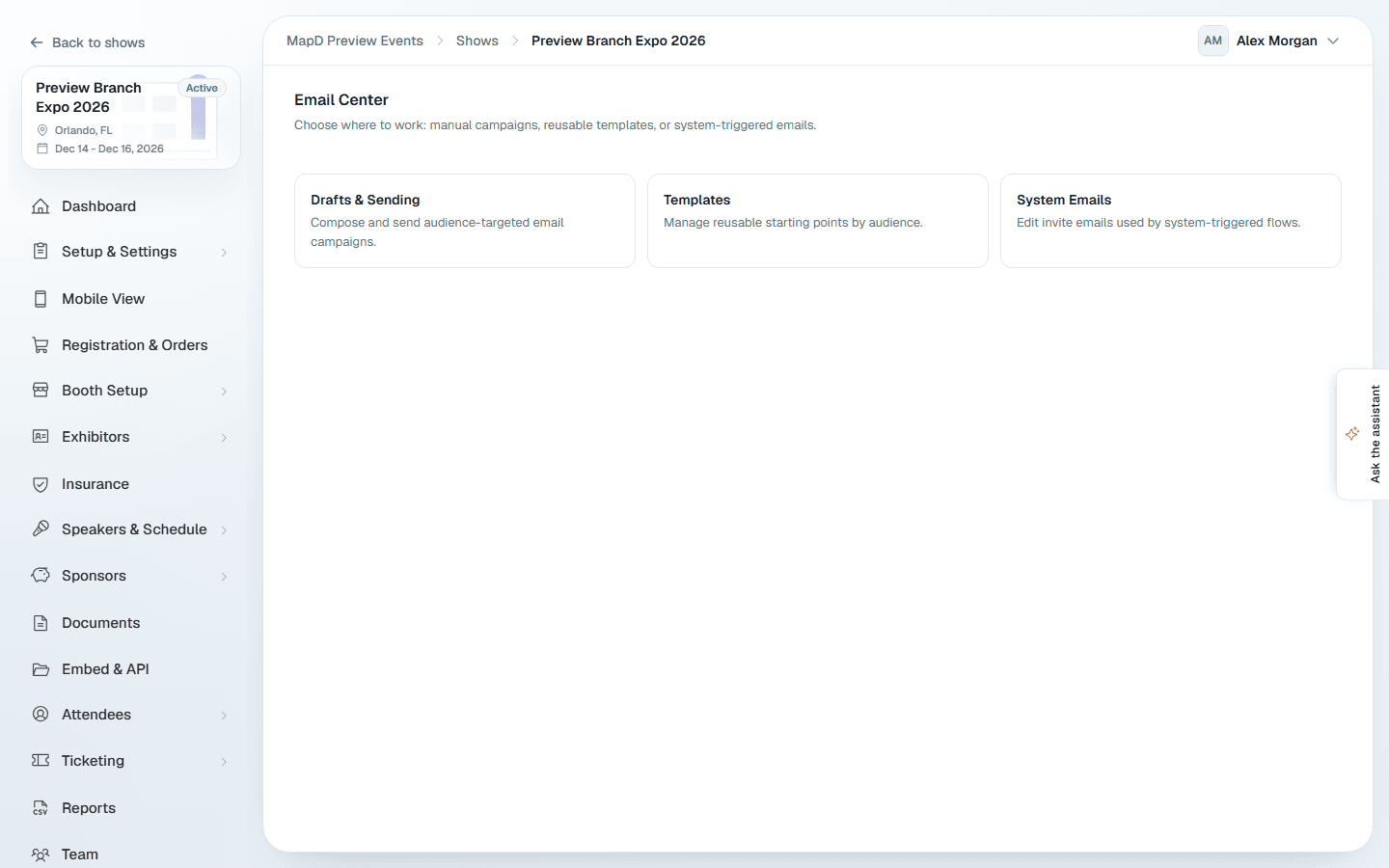
The Email Center sends emails to your show's attendees, exhibitors and speakers, personalized for each person. Open it under Setup & Settings in the show sidebar.
Send an email
Choose a draft or template
Open Drafts & Sending. Pick one of Your drafts, or Start from a template.
Design it
Edit the message in the designer. Under Email settings, set the reply-to address and template. Insert placeholders from the side panel to personalize it. Select Save draft, then Next.
Choose recipients and send
Select the people to send to, or Select all, and select Send. Map D reports how many were sent and how many failed.
Emails are sent straight away. Select Preview before sending to check how it looks.
Unsubscribes
Emails you send from Drafts & Sending, ticket email campaigns, and Send Email to ticket holders end with an Unsubscribe link, and email apps show their own unsubscribe button for them. Someone who unsubscribes gets no more of these from your organization, in any of your shows. When you send to them anyway, the results list them as not sent, with Not sent: unsubscribed from your emails.
Unsubscribing never stops the emails people need: order confirmations, invoices, payment requests, receipts, portal invites and sign-in emails still go to them.
Sender name and reply-to
Sender, below the three areas on the Email Center's first page, sets the name people see on your show's emails and the address their replies go to. It covers the emails Map D sends for the show, such as portal invites, ticket emails and your campaigns.
- This show applies to this show only. Leave a field blank to use the organization default.
- Organization default applies to every show that doesn't set its own. Only an organization Owner can change it.
Select Save sender after changing either one. Emails are always sent from Map D's address; only the name and the reply-to change. Booth sales emails use the From name and Reply-to on the Checkout tab instead, and a draft's own reply-to under Email settings wins over both.
Placeholders
Placeholders are replaced with each recipient's details:
| For | Placeholders |
|---|---|
| Everyone | {{First_Name}}, {{Last_Name}}, {{Title}}, {{Email}}, {{Organization}} |
| Your show | {{Event_Title}}, {{Start_Date}}, {{End_Date}}, {{Facility}}, {{City}}, {{State}}, {{Public_Contact}}, {{Link}} |
| Exhibitors | {{Company}}, {{Website}}, {{Booth}}, and admin contact details such as {{Admin_First_Name}} |
| Speakers | {{Session_Title}}, {{Session_Time}} |
| Invites | {{Invite_Link}}, and {{Login_Email}} for attendees |
For exhibitor emails, you can also include each exhibitor's booth assignment. On Recipients, change All exhibitors to Onboarding not complete or Onboarding not started to list only the exhibitors still working through their onboarding checklist.
Templates
Email Templates are reusable starting points. Filter by audience, status or owner. Duplicate a template to make your own version, or select New template. Built-in system templates can be duplicated but not edited.
System emails
Notifications Setup controls the automatic invitation emails Map D sends to attendees, exhibitors and speakers. Select one to change its wording for your show, or Reset to default to go back. These are separate from your templates library.
Still need help?
Contact your Map D account team. Include your show name and, if something looks wrong, a screenshot of the page.
Last updated September 29, 2026