
Add your booth staff
Add the people working your booth, and what to do when you reach your personnel limit.
Booth personnel are the people from your company working at the show. They appear on your public profile so visitors know who to look for, and some can offer a meeting link.
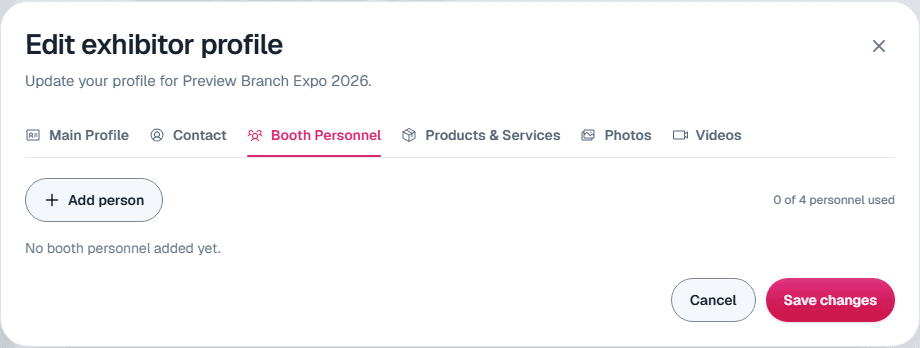
Add a person
Open the Booth Personnel tab
On My Profiles, select Edit profile, then the Booth Personnel tab.
Select Add person
Enter their First name and Last name (both required). You can also add a photo, title, personnel type (for example Sales or Support), email, phone, a Book meeting link and a brief bio.
Save
The person is saved straight away. There is no need to select Save changes afterwards.
What visitors see
Each person's name, title, photo, brief bio and Book meeting link appear on your public profile, on your show's website and in its mobile app. Leave a field empty to keep it off your profile. Email and phone are for your records and your organizer, and are never shown to visitors. Someone who has chosen to hide their profile at the show is left off your public profile, though they stay on your booth staff.
Use Edit or Remove next to a person to change them. Drag people to change the order they appear in.
Meetings at your booth
When your show runs matchmaking, a booth staff member who also has a matchmaking ticket can choose where people meet them. In the show's attendee portal, under My availability, Where people can meet you offers At my booth, which shows your company and booth number, or The show's meeting area. The meeting area is the default.
Staff who choose At my booth get their meetings at your booth. When an attendee requests a meeting with them, or they request one themselves, the request sheet offers your booth with its number and hall, named after the staff member (for example At Sam's booth, or At my booth for the staff member themselves), already selected, and Meeting area. A meeting at the booth shows your booth in the attendee's meeting, and Show on floor map opens your booth on the show's floor plan when the show has one. Exhibitor admins who aren't also on your booth staff don't get this choice.
Once at least one of your active booth staff or exhibitor admins can be met in matchmaking, your company also appears under Discover → Companies in the attendee portal, with your logo, the first sentence of your description, booth number and how many of your team attendees can meet. Staff and admins who haven't accepted their invitation yet don't count.
Attendees who open your company there see its profile, with your booth, description and website, and under People to meet the booth staff and exhibitor admins with a matchmaking ticket they can meet. Each person opens their own profile.
How many people you can add
The tab shows how many spots you have used, for example "3 of 5 personnel used". Your limit comes from your booth package. Some shows have no limit.
When you reach your limit, Add person is disabled. If your organizer sells extra spots, the tab tells you which item in your profile row's More actions menu to use: usually Booth and Services, or Buy personnel spots if staff spots are all your organizer sells. See Buy services and extra staff spots.
Badges
Adding someone here lists them on your profile. It does not register them for a badge. Your show organizer will tell you how badges work for their show.
Still need help?
For questions about your show, booth or invoice, contact your show organizer. Their contact details are in your invite and order emails. Who to ask
Last updated November 10, 2026