
Manage members and sessions
Edit roles and assigned shows, lock, remove or restore members, and sign out devices from Sessions.
Members lists everyone in your organization with their role, status, whether two-factor authentication is on, and when they last signed in.
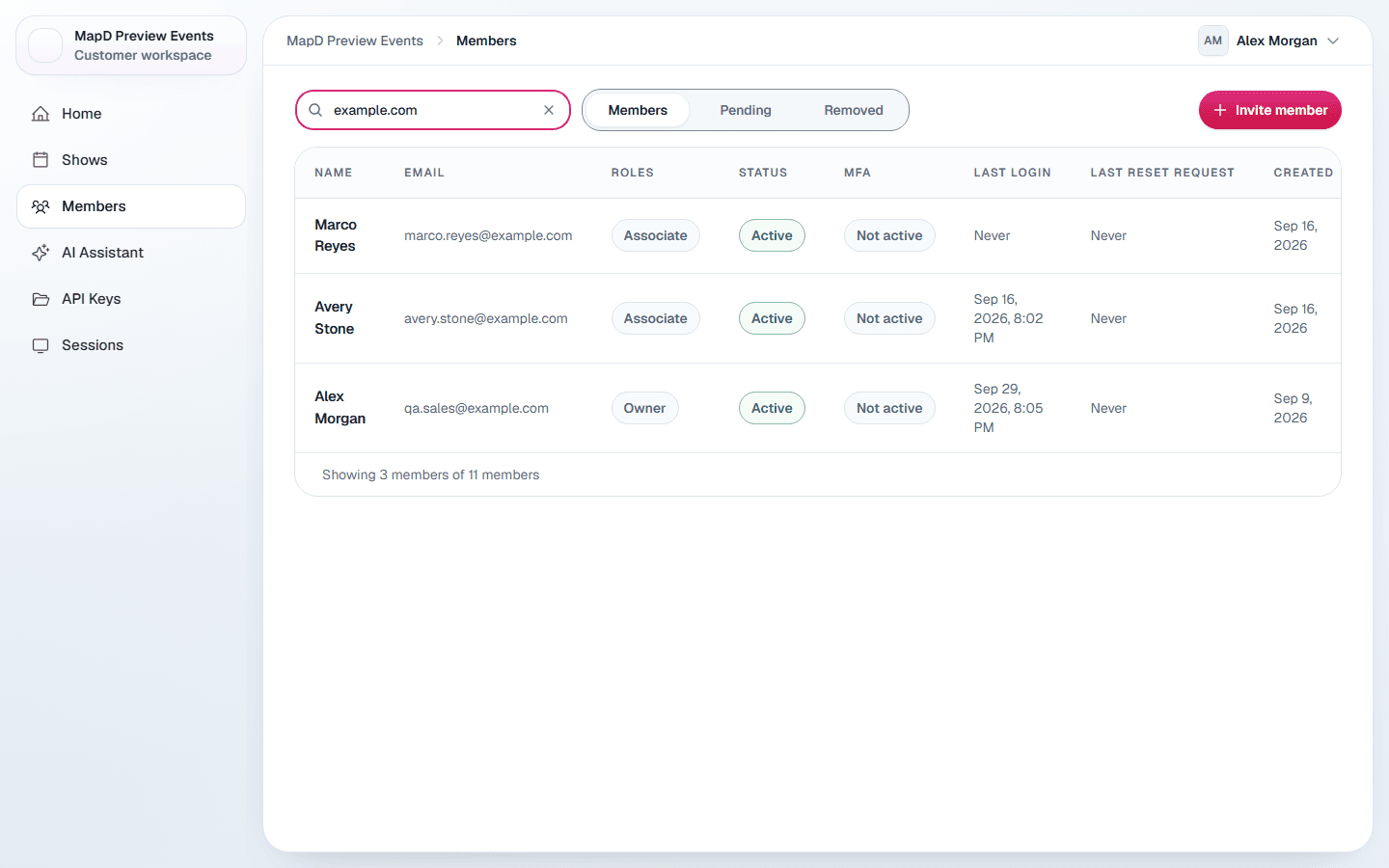
Change a member
Open the menu on a member's row:
| Action | What it does |
|---|---|
| Edit | Change their first and last name and their Role. For Associates, also choose their Assigned shows. |
| Resend invitation | Sends a fresh invitation email. Shown only if they have never signed in. |
| Lock account | Signs them out and blocks them from signing in until you Unlock account. Use it when someone should lose access for now. |
| Remove from organization | Takes away their access to this organization. They move to Removed, where you can restore them. |
Map D asks you to confirm before locking, unlocking or removing someone.
Rules that protect your organization
- Only an Owner can edit, lock or remove another Owner, or give someone the Owner role.
- You cannot lock or remove yourself.
- The last active member and the last Owner cannot be removed. Contact Map D if you need to hand over the organization.
Restore someone you removed
Removing a member never deletes them. Select Removed at the top of Members to see everyone removed from your organization, with the roles they had and when they were removed.
Select Restore on their row to bring them back. They get back the role they had and, for Associates, their assigned shows. The same rules apply as for removing: only an Owner can restore another Owner.
Passwords and two-factor
The MFA column shows whether each person has two-factor authentication turned on. There is no password reset button on this page: members reset their own password with Forgot password? on the login page. If someone loses the phone they use for codes, contact Map D support to reset their two-factor authentication.
Review and sign out sessions
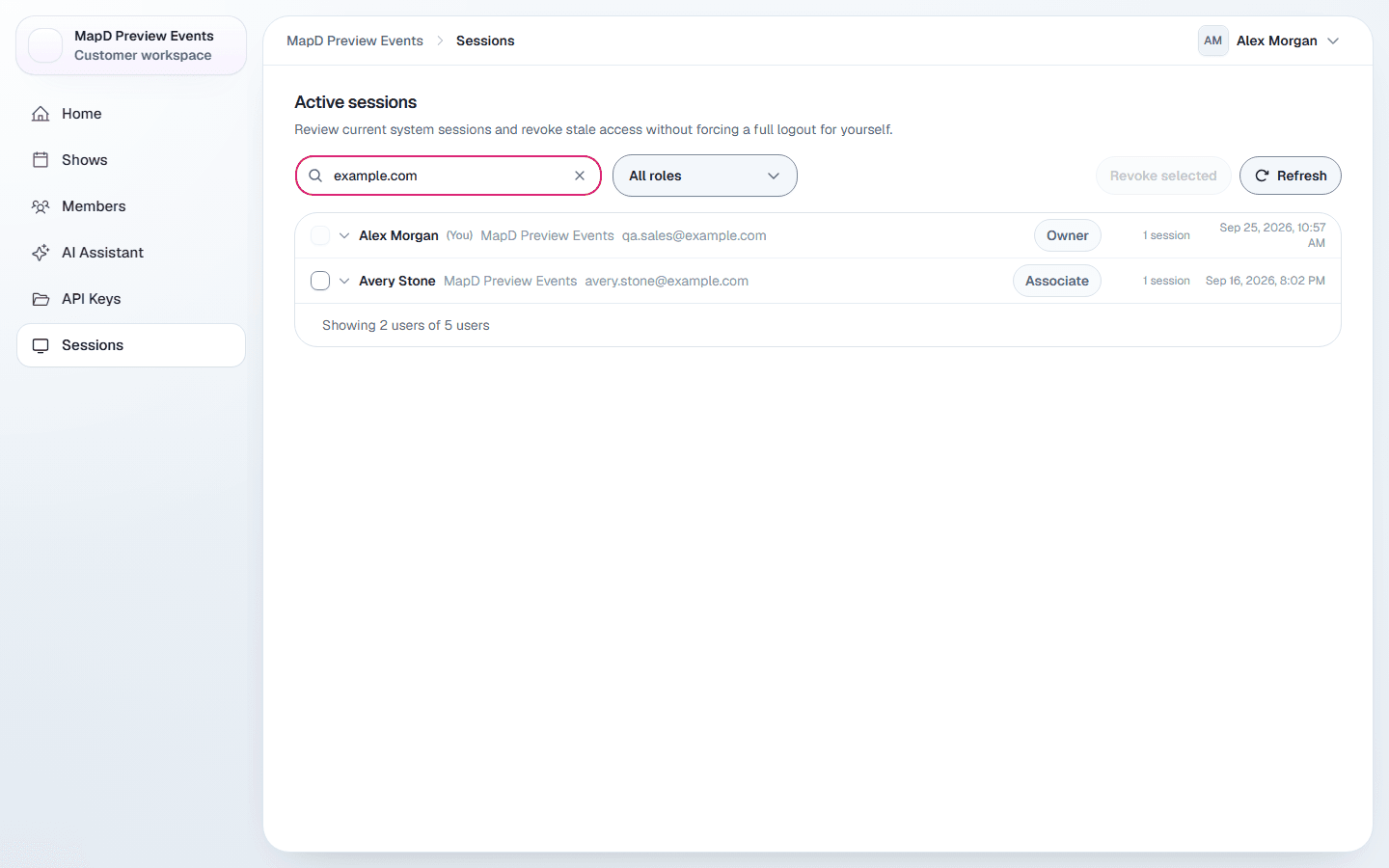
Sessions in the organization sidebar lists every device signed in to your organization, grouped by person. Expand a person to see when each session started and was last seen, the device and the IP address. Your own current session is marked Current session.
- Select Revoke on a row to sign that device out right away. There is no confirmation.
- Tick several sessions and select Revoke selected to sign them out together.
- Use Refresh to reload the list.
Still need help?
Contact your Map D account team. Include your show name and, if something looks wrong, a screenshot of the page.
Last updated September 30, 2026