
Find your way around your workspace
What each item in the sidebar and the account menu does, and how to open a show.
Your workspace has two levels: your organization, which holds your team and all of your shows, and each show, which has its own set of tools. The sidebar changes depending on which one you are in.
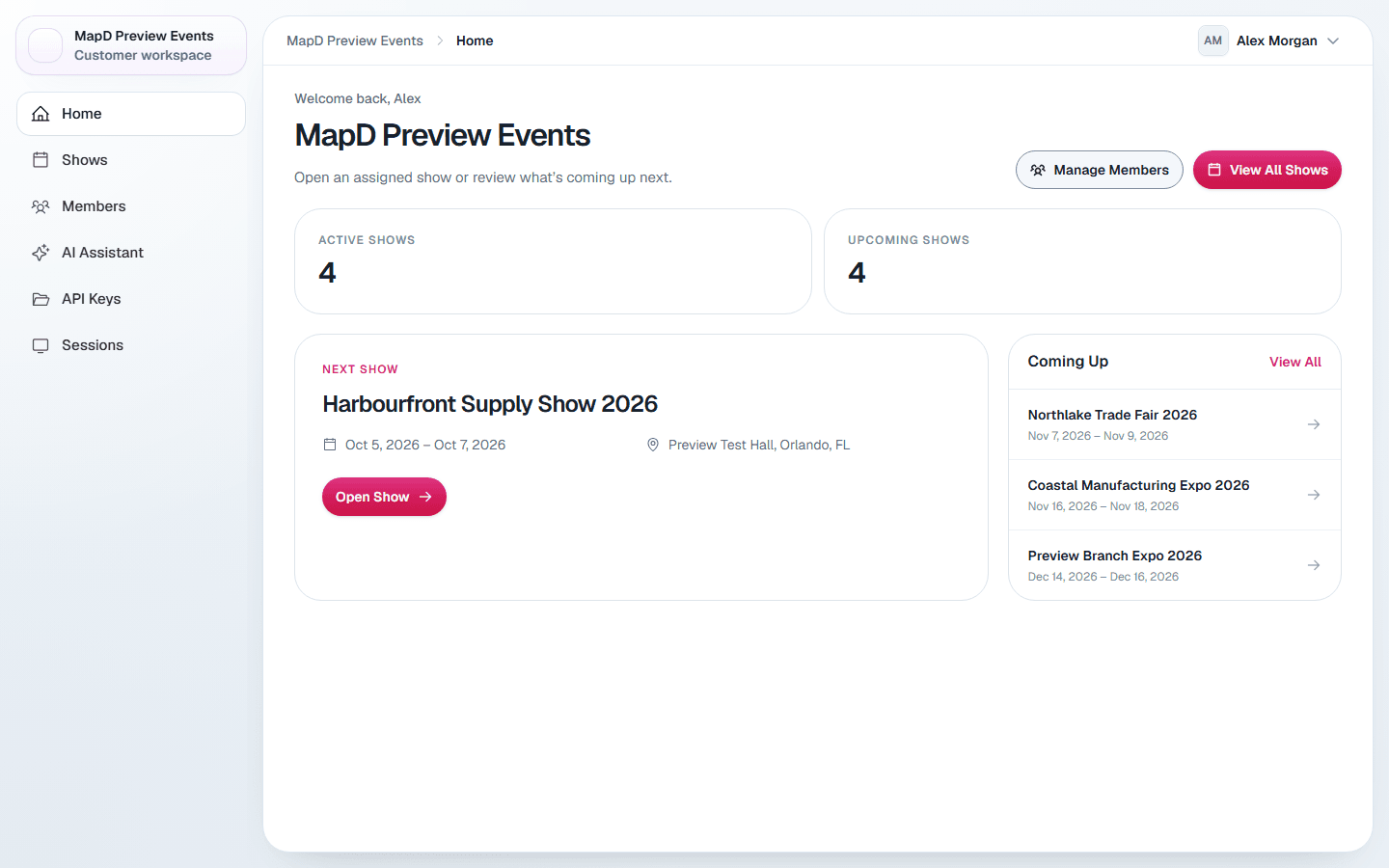
The organization sidebar
| Item | What it is for |
|---|---|
| Home | A summary of your active and upcoming shows, and what is coming up next. |
| Shows | Every show in your organization. Search, filter by status and date, and open a show. |
| Members | Your team: invite colleagues, change roles and assign shows. Owners and Show Managers only. |
| AI Assistant | Ask questions about your shows in plain language. |
| Sessions | Devices currently signed in to your organization, with the option to sign them out. Owners and Show Managers only. |
| API Keys | Keys for connecting your own systems to Map D. Owners manage every key; Show Managers and Associates, keys for their shows. |
| My Profiles | Your own speaker or exhibitor profiles, if you have any. |
What you see depends on your role. See Roles: Owner, Show Manager and Associate.
Inside a show
Open a show from Shows to switch the sidebar to that show's tools. The show Dashboard is the place to start:
- Overview has links to your Homebase, your registration page and the map editor, plus a sales summary.
- Configuration has the show settings you can switch on and off yourself.
- Analytics shows how visitors use your Homebase and exhibitor profiles.
- Activity is a log of recent changes to the show.
Below the dashboard, the show sidebar groups tools by job: exhibitors, booth sales, speakers and schedule, ticketing, communication, Homebase and the mobile app. Sections your show does not include are hidden. For example, Registration & Orders appears only when Booth Sales is included. Booth Setup remains available so you can maintain booth types, booths and services.
The account menu
Select your name in the top right corner to open the account menu:
- Profile: your name, photo, email and two-factor authentication.
- AI Assistants: connect Claude or ChatGPT to your Map D data.
- Edit Organization: your company details and branding. Owners only.
- Log out.
Still need help?
Contact your Map D account team. Include your show name and, if something looks wrong, a screenshot of the page.
Last updated September 29, 2026